Install a data pack
Goal
Give the application some data to show.
You probably do not need this
Decision Theatre is hosted at africanlandscapefutures.wits.ac.za and needs no installation. Run it locally only if you need it offline — in the field, or in a workshop without reliable internet.
To use the hosted version instead, start at Step 1 — Open the dashboard.
Background
A fresh install has no data. On first launch the application looks for map tiles and scenario data; if it cannot find them it shows a Setup Guide instead of a map.
A data pack is a single archive containing the vector map tiles, the map style, and the GeoPackage of scenario data. It is distributed separately from the application because it is large and changes on its own schedule.
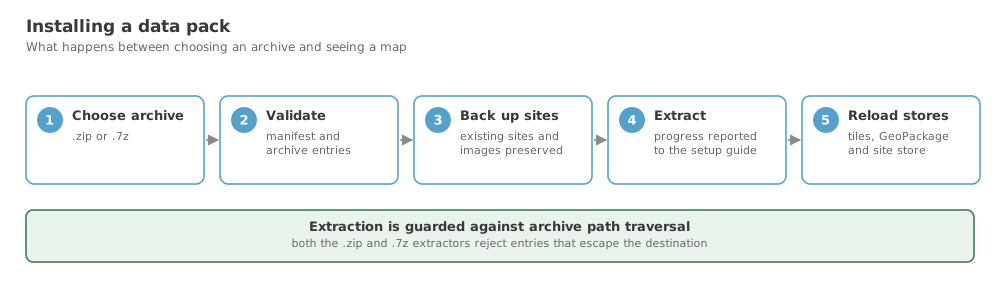
Steps
- Obtain a data pack archive (
.zipor.7z) from the project maintainers. - Launch the application. If no data is present you will see the Setup Guide.
- Enter the full path to the archive in the Install Data Pack field.
- Click Install. Progress is reported as the archive extracts.
- The application reloads automatically when extraction finishes.
Your existing sites and thumbnails are backed up and restored around the install, so installing a new pack does not discard work.
Where the data ends up
| Platform | Path |
|---|---|
| Linux | ~/.local/share/decision-theatre/datapacks/ |
| macOS | ~/Library/Application Support/decision-theatre/datapacks/ |
| Windows | %LOCALAPPDATA%\decision-theatre\datapacks\ |
The location is remembered, so subsequent launches load it automatically.
Pointing at a directory instead
If you already have an extracted data directory, skip the installer:
If the map is blank, or most factors are missing
Both have known causes that a validator will identify in seconds:
See The Data Directory for what it checks and why.
What you achieved
- A data pack is installed and loaded
- You know where the extracted data lives
- You know how to check a data directory when something looks wrong