Production Server Deployment
This guide covers deploying Decision Theatre on a production server using the Docker Compose stack in the deployments/ directory. The stack runs two containers: the application itself (Go binary serving the React frontend) and an Nginx reverse proxy that forwards requests to the app. Nginx listens on both HTTP and HTTPS at once — neither redirects to the other, so both stay usable independently.
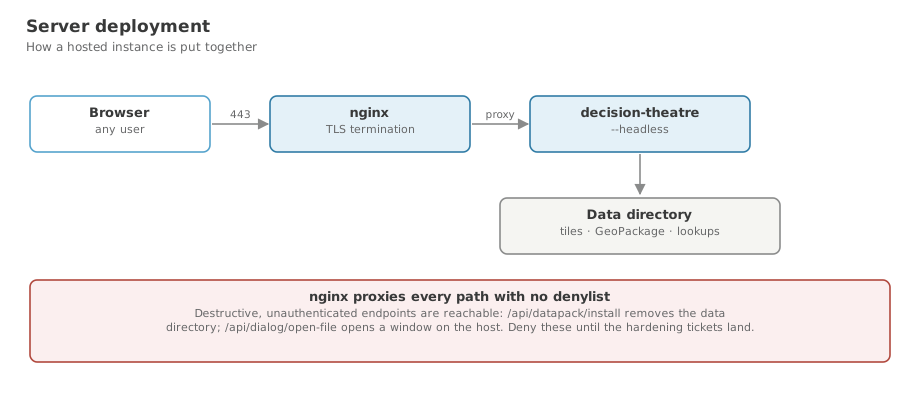
Architecture Overview
- app — the Decision Theatre binary, built from source inside the container. Runs in
--headlessmode (no GUI window). Serves the web UI, REST API, and tile endpoints on port 8080. Ports 8081–8083 are internal tile-server ports also exposed inside the Docker network. - nginx — Nginx 1.27 acting as a reverse proxy, with an HTTP listener and a TLS-terminating HTTPS listener side by side (same locations, same upstream). Rewrites internal
http://localhost:808x/URLs in tile/style JSON responses to the public host and scheme so that map tiles resolve correctly in the browser regardless of which listener served the page.
Prerequisites
- Docker Engine ≥ 24 and Docker Compose v2 (
docker composenotdocker-compose) - A TLS certificate and private key for the server's hostname
- The
data/andresources/directories populated with the application's data files (see Data Setup)
Directory Layout
deployments/
├── .env                   # Your local configuration (not committed)
├── .env.example           # Template — copy this to .env
├── Dockerfile             # Multi-stage build (Node → Go → Debian slim).
│                          # The flake builds the same image without the
│                          # hand-maintained package list — see below.
├── Dockerfile.dockerignore
├── Dockerfile.cross       # Cross-compiles bare Linux/Windows executables
├── Dockerfile.cross.dockerignore
├── Dockerfile.builder     # Toolchain image for the on-demand `builder` service
├── docker-compose.yaml
├── nginx.conf             # Nginx virtual-host config
└── certs/
    ├── tls.crt            # TLS certificate (or chain)
    └── tls.key            # TLS private key
Quick Start
cd deployments

# 1. Copy the example env file and fill in your values
cp .env.example .env
$EDITOR .env

# 2. Place your TLS certificate and key
cp /path/to/your/certificate.crt certs/tls.crt
cp /path/to/your/private.key     certs/tls.key

# 3. Build and start
docker compose up -d --build

# 4. Check logs
docker compose logs -f
The application is now accessible at both http://<your-server>/ and https://<your-server>/.
Getting the image
The image is built from the flake. Its contents are the runtime closure of the binary Nix builds, so nothing states a dependency version twice — which is what went wrong before: a hand-written apt list installed WebKit 4.0 while the flake, CI and the Debian packaging all targeted 4.1, and omitted a plugin mkdocs.yml requires, so for a while no image could be built at all.
There are three ways to get it, in order of how most people should.
1. Pull a released image from GHCR
docker pull ghcr.io/kartoza/decisiontheatre:0.4.0   # an immovable version pin
docker pull ghcr.io/kartoza/decisiontheatre:latest  # the newest stable release
Every release publishes its version tag, along with the image tarball, its SBOM and its vulnerability scan as release assets. :latest follows the newest stable release: a pre-release tag such as v2.4.0-rc1 publishes :2.4.0-rc1 and leaves :latest where it is, so an unpinned pull never lands on a release candidate.
Prefer the version pin for anything you are running in earnest — :latest moves under you on the next release, and docker compose up -d will pick that up.
The image path is lowercase
GHCR rejects an uppercase path, and this repository is kartoza/DecisionTheatre. So it is ghcr.io/kartoza/decisiontheatre, not …/DecisionTheatre. Pulling the capitalised form fails with a confusing denied rather than not found.
Running it
The image needs a data directory and a resources directory, exactly as the compose service does. Nothing is baked in — the datapack is never part of the image.
docker run -d --name decision-theatre \
  -p 8080:8080 \
  -v /srv/decision-theatre/data:/app/data \
  -v /srv/decision-theatre/resources:/app/resources:ro \
  ghcr.io/kartoza/decisiontheatre:0.4.0
Then curl http://127.0.0.1:8080/api/health should answer {"status":"ok"}.
The image's default command already carries the flags the deployment needs — --headless --bind 0.0.0.0 --port 8080 --data-dir /app/data --resources-dir /app/resources — so you only override them if you want something different.
The API is unauthenticated, and read-only
In server mode nothing the API exposes writes anything. The two routes that could — POST /api/datapack/install, which replaces the data directory, and POST /api/dialog/open-file, which opens a native file picker — are registered only when DesktopMode is set, so in a container they are absent from the route table entirely. The remaining POST/PATCH routes compute a result and return it; none of them persists.
So exposing this is not a data-integrity risk. Two things are still worth weighing before putting it on a public address:
- A single request can be expensive. A full-domain statistics query returns roughly 14.7 MB and takes about 4 seconds, and nothing rate-limits it. That is an availability and bandwidth consideration rather than a security one, but it is cheap to abuse.
/api/geocodeproxies to OpenStreetMap's Nominatim, whose usage policy the server exists to honour on behalf of every browser tab — seeinternal/server/geocode.go. A publicly reachable instance is an open relay to a third party under your identifying User-Agent, and the policy is yours to keep.
--bind 0.0.0.0 is correct inside a container: the process must accept connections from outside its own network namespace to be reachable at all.
To use it with the compose stack instead, point DT_IMAGE at it:
Permission to pull
If the package is public, no authentication is needed — docker pull works for anyone, including a machine that has never logged in to GitHub. That is the intended state for this project.
If the package is private, a pull returns:
which is GHCR's answer both to "you may not" and to "there is no such package", so it does not tell you which. Authenticate with a token that has the read:packages scope:
Use a classic personal access token with read:packages, or a fine-grained token with the Packages: read permission. A password will not work — GHCR accepts tokens only.
Making it public (maintainers, once)
A package is created private on its first push, whatever the repository's visibility. Someone with admin on the package has to change it:
- Go to
https://github.com/orgs/kartoza/packages - Open
decisiontheatre→ Package settings - Under Danger Zone → Change visibility → Public
The release workflow does not attempt this: GITHUB_TOKEN does not carry org-level package administration, so a script that tried would fail confusingly rather than doing it. It is a one-time manual step.
While you are there, check Manage Actions access lists this repository with Write — the workflow needs it to push. That link is created automatically when the image is first pushed with GITHUB_TOKEN from this repository, so it normally requires nothing.
If the first release push fails with 403
The repository's own Actions permissions are the usual cause, not the package: Settings → Actions → General → Workflow permissions must be Read and write permissions. A workflow can only narrow what the repository allows, so packages: write in the workflow file is silently not granted when that setting is read-only.
2. Take the image from a pull request
Every pull request builds the image and attaches it, its SBOM and its CVE scan as a container-image artefact kept for 7 days. The pull request is annotated with the package inventory and the scan results, and the comment carries the commands. This is how you try a change before it merges:
# Download `container-image` from the Actions run linked in the PR comment
unzip container-image.zip
docker load < decision-theatre-image.tar.gz
docker run --rm -p 8080:8080 decision-theatre:0.4.0
3. Build it yourself
Needs Nix and Docker:
./scripts/build-container.sh     # builds and loads it, then prints the tag
make container                   # the same
nix build .#container            # just the tarball, at ./result
The tag is the version declared in flake.nix; nix eval --raw .#container.imageTag reports it on its own.
Running a specific image with compose
DT_IMAGE defaults to decision-theatre:latest. Compose only builds when the named image is absent, so naming one you have already pulled or loaded uses it as-is.
What is still built the old way, and why
deployments/Dockerfile is still present and compose still builds from it by default. It is no longer built or tested in CI — the flake image is the one that is. It stays only until a release has published an image to GHCR that compose can pull instead, because switching before then would leave a deployment with nothing to pull. Removing it is tracked, along with Dockerfile.builder, which the nightly scripts/scheduled-redeploy.sh uses to rebuild the datapack and installers on a host that has only Docker.
Environment Variables (.env)
All variables are consumed by docker-compose.yaml. Copy .env.example to .env and edit it before starting the stack.
HTTP_PORT (default: 80)
The host port that Nginx binds for plain HTTP traffic.
Change this if port 80 is already in use on the host or if your firewall/load balancer forwards a non-standard port.
HTTPS_PORT (default: 443)
The host port that Nginx binds for HTTPS traffic.
DT_DATA_DIR
Required. Absolute (or relative-to-deployments/) path on the host to the directory mounted into the container at /app/data.
This directory must contain the application's runtime data:
| File | Description |
|---|---|
datapack.gpkg | Main scenario GeoPackage — catchment geometries, scenario tables, precomputed GeoJSON, domain min/max for colour scaling |
mbtiles/africa.mbtiles | Vector tile archive for the base map |
mbtiles/style.json | MapLibre style for the base map tiles |
sites/ | Saved site JSON files (written at runtime) |
projects/ | Saved project JSON files (written at runtime) |
current.csv, reference.csv, metadata.csv | Source CSV files (used during data preparation; not required at runtime unless dt geopackage is re-run inside the container) |
The app writes sites/ and projects/ subdirectories at runtime, so the host path must be writable by the container user (UID 0 in the slim image).
# Use an absolute path in production
DT_DATA_DIR=/srv/decision-theatre/data

# Or a path relative to the deployments/ directory (useful for testing)
DT_DATA_DIR=../data
DT_RESOURCES_DIR
Required. Absolute (or relative) path on the host to the directory mounted into the container at /app/resources as read-only.
This directory contains shared geospatial resources that are not modified at runtime:
| File | Description |
|---|---|
mbtiles/style.json | MapLibre style for resource-layer tiles; served via GET /data/style.json |
mbtiles/*.gpkg | Source GeoPackages used during tile generation (not needed at runtime) |
TLS_CERT_FILE (default: ./certs/tls.crt)
Path on the host to the TLS certificate file. This is mounted into Nginx at /etc/nginx/certs/tls.crt.
If your CA provides a certificate bundle (intermediate chain + leaf), use the full chain file here. Sectigo/Wits certificates typically require this.
# Default (relative to deployments/)
TLS_CERT_FILE=./certs/tls.crt

# Absolute path to an externally managed certificate
TLS_CERT_FILE=/etc/ssl/certs/decision-theatre-fullchain.pem
TLS_KEY_FILE (default: ./certs/tls.key)
Path on the host to the TLS private key file. This is mounted into Nginx at /etc/nginx/certs/tls.key.
Keep this file owner-readable only (chmod 600). It is mounted read-only into the Nginx container.
Example .env for Production
# Ports
HTTP_PORT=80
HTTPS_PORT=443

# Data directories on the host (use absolute paths in production)
DT_DATA_DIR=/srv/decision-theatre/data
DT_RESOURCES_DIR=/srv/decision-theatre/resources

# TLS — full chain required for Wits/Sectigo certificates
TLS_CERT_FILE=/etc/ssl/certs/decision-theatre-fullchain.pem
TLS_KEY_FILE=/etc/ssl/private/decision-theatre.key
Data Setup
The application will start without data but the UI will show a setup guide prompting users to load a data pack. For a fully operational deployment, populate the data directory before starting:
1. Map Tiles
The base map requires an MBTiles file. Convert the source GeoPackage using the helper script:
2. Scenario Datapack
Build the scenario GeoPackage from catchment geometries and CSV data:
# Place these files in data/
#   catchments.gpkg   — catchment geometries
#   current.csv       — current scenario metrics
#   reference.csv     — reference scenario metrics
#   metadata.csv      — optional column descriptions

dt geopackage
# Output: data/datapack.gpkg
See the Data Preparation guide for full details on input formats and the GeoPackage schema.
3. Enabling Browser Downloads (Executables and Data Pack)
When the application is running in browser runtime (accessed via a web browser rather than the desktop app), the Download page lets users download the application executables and the data pack directly from the server. Each item only appears when its path has been configured — unconfigured items display a "not configured" notice instead of a download button.
settings.json — the single source of truth
All download paths are stored in one file. Inside the container it lives at:
On a bare-metal or VM deployment (no Docker) it lives at:
| OS | Path |
|---|---|
| Linux | ~/.config/decision-theatre/settings.json |
| macOS | ~/Library/Application Support/decision-theatre/settings.json |
| Windows | %APPDATA%\decision-theatre\settings.json |
The complete set of download-related keys is:
| Key | Description |
|---|---|
data_pack_download_path | Absolute path to the data pack archive (.zip or .7z) |
executable_windows | Absolute path to the Windows executable (.exe or installer) |
executable_linux | Absolute path to the Linux executable (.tar.gz or AppImage) |
executable_macos | Absolute path to the macOS disk image (.dmg) |
A fully configured settings.json looks like this:
{
  "data_pack_download_path": "/app/downloads/decision-theatre-data-v1.0.0.7z",
  "executable_windows":      "/app/downloads/decision-theatre-v1.0.0-windows.exe",
  "executable_linux":        "/app/downloads/decision-theatre-linux-amd64-v1.0.0.tar.gz",
  "executable_macos":        "/app/downloads/decision-theatre-v1.0.0-darwin-universal.dmg"
}
You can omit any key you don't want to offer — that platform's card will show a "not configured" notice rather than a broken download link. All endpoints read settings.json on every request, so changes take effect immediately without a restart.
Docker setup
Step 1 — Place download files on the host
mkdir -p /srv/decision-theatre/downloads

# Copy whichever files you want to serve
cp decision-theatre-data-v1.0.0.7z            /srv/decision-theatre/downloads/
cp decision-theatre-linux-amd64-v1.0.0.tar.gz /srv/decision-theatre/downloads/
cp decision-theatre-v1.0.0-windows.exe        /srv/decision-theatre/downloads/
cp decision-theatre-v1.0.0-darwin-universal.dmg /srv/decision-theatre/downloads/
Step 2 — Write settings.json on the host
mkdir -p /srv/decision-theatre/config

cat > /srv/decision-theatre/config/settings.json << 'EOF'
{
  "data_pack_download_path": "/app/downloads/decision-theatre-data-v1.0.0.7z",
  "executable_windows":      "/app/downloads/decision-theatre-v1.0.0-windows.exe",
  "executable_linux":        "/app/downloads/decision-theatre-linux-amd64-v1.0.0.tar.gz",
  "executable_macos":        "/app/downloads/decision-theatre-v1.0.0-darwin-universal.dmg"
}
EOF
Step 3 — Add mounts to docker-compose.yaml
services:
  app:
    # ...existing config...
    volumes:
      - ${DT_DATA_DIR}:/app/data
      - ${DT_RESOURCES_DIR}:/app/resources:ro
      - /srv/decision-theatre/downloads:/app/downloads:ro
      - /srv/decision-theatre/config/settings.json:/root/.config/decision-theatre/settings.json:ro
Note
If the application also needs to write settings at runtime (e.g. a user installs a data pack via the setup guide), mount the config directory read-write instead of the file directly:
Alternative — configure after start with docker exec
docker compose exec app mkdir -p /root/.config/decision-theatre
docker compose exec app sh -c 'cat > /root/.config/decision-theatre/settings.json << EOF
{
  "data_pack_download_path": "/app/downloads/decision-theatre-data-v1.0.0.7z",
  "executable_windows":      "/app/downloads/decision-theatre-v1.0.0-windows.exe",
  "executable_linux":        "/app/downloads/decision-theatre-linux-amd64-v1.0.0.tar.gz",
  "executable_macos":        "/app/downloads/decision-theatre-v1.0.0-darwin-universal.dmg"
}
EOF'
Nginx considerations for large downloads
The default proxy_read_timeout in nginx.conf is 300 seconds. This timeout applies between successive reads from the Go backend — not to the total transfer time — so a steady download of any size will complete without being interrupted. If your connection is very slow and the client pauses mid-download you may need to increase it:
# In deployments/nginx.conf, inside the `location /` block:
proxy_read_timeout 3600s;
proxy_send_timeout 3600s;
TLS Certificates
Using a CA-Issued Certificate (Wits/Sectigo)
If your institution uses Sectigo (as Wits does), you will receive a certificate bundle. Use the full chain file, not just the leaf certificate, to avoid browser trust errors:
# Combine leaf + intermediates into a chain file (if not already combined)
cat your_cert.crt intermediate.crt > certs/tls.crt
cp your_private.key certs/tls.key
chmod 600 certs/tls.key
Then set in .env:
Using a Self-Signed Certificate (Testing Only)
For internal testing on a non-public server:
openssl req -x509 -newkey rsa:4096 -keyout certs/tls.key \
  -out certs/tls.crt -days 365 -nodes \
  -subj "/CN=decision-theatre.local"
chmod 600 certs/tls.key
Warning
Self-signed certificates will trigger browser security warnings and should never be used in production. The HTTP listener remains available side by side, so testers who don't want to click through a warning can just use http:// instead.
Building the Image
The Dockerfile uses a three-stage build:
frontend(Node 22) — installs npm dependencies and runsnpm run buildto produce the React/TypeScript bundle.builder(Go 1.24) — downloads Go modules, copies the compiled frontend bundle, builds the MkDocs documentation site, then compiles the Go binary withCGO_ENABLED=1(required for SQLite/GeoPackage support viago-sqlite3).runtime(Debian Bookworm slim) — copies only the compiled binary into a minimal image with the required GTK/WebKit2GTK shared libraries.
To build the image manually and pass a version label:
docker build \
  --build-arg VERSION=1.2.3 \
  -f deployments/Dockerfile \
  -t decision-theatre:1.2.3 \
  .
The VERSION build argument is baked into the binary and displayed in the UI and --version output.
Application CLI Flags (Container command)
The docker-compose.yaml passes the following flags to the binary. These are fixed in the compose file and should not need to change:
| Flag | Value | Description |
|---|---|---|
--headless | (present) | Disables the GUI window. Required for server operation, and it is also what selects the server build — see Client/Server Boundary. |
--bind | 0.0.0.0 | Interface to listen on. Required here; see the warning below. |
--port | 8080 | HTTP port the app listens on inside the container. |
--data-dir | /app/data | Path to the data directory (bound from DT_DATA_DIR). |
--resources-dir | /app/resources | Path to the resources directory (bound from DT_RESOURCES_DIR). |
--bind 0.0.0.0 is safe here and only here
The application defaults to 127.0.0.1, because every endpoint is unauthenticated and binding all interfaces would publish the whole API to the network. Inside a container that default would make the app unreachable even to Nginx, so the compose file opts in explicitly.
What makes it acceptable is that the app service only exposes 8080–8083 on the Docker network and never publishes them to the host; nginx is the only service with a ports: mapping, so it is the single way in. Adding ports: - "8080:8080" to app would bypass Nginx and publish an unauthenticated API to your network.
If you run the binary directly on a host rather than through the compose stack, leave --bind at its default and put a proxy in front of it.
Nginx Configuration Notes
The nginx.conf in deployments/ is mounted read-only into the Nginx container. Key behaviours:
- HTTP and HTTPS side by side — one server block listens on
:80, another on:443with TLS. Neither redirects to the other; both serve the app directly.$schemeinnginx.confreflects whichever listener handled the request, so headers and tile-URL rewriting adapt automatically instead of hardcoding a protocol. - TLS — TLSv1.2 and TLSv1.3 only. Session cache of 10 MB, 1-day timeout.
- Compression —
gzipis on forapplication/jsonresponses (min 1 KB), which cuts the choropleth payload by roughly 3-4x. Note thatgzip_proxied anyis required here since every response is proxied viaproxy_passand Nginx disables gzip for proxied responses by default. - Upload limit —
client_max_body_size 2gto accommodate large GeoPackage or shapefile uploads. - WebSocket support —
Upgrade/Connectionheaders are forwarded for any WebSocket connections. - Tile/style URL rewriting — The Go backend generates tile and style JSON with
http://localhost:808x/URLs. Nginx rewrites these back to$scheme://<host>/usingsub_filterso that map tiles resolve correctly through the public host over whichever protocol the browser used. This rewriting applies only to/data/style.jsonand/data/tiles.json. - Proxy timeouts — Read and send timeouts are 300 seconds to accommodate large data file uploads.
If you need to change the Nginx behaviour (e.g., add a server_name, customise headers, or enable rate limiting), edit deployments/nginx.conf directly and restart the nginx container:
Common Operations
Start / Stop
# Start (detached)
docker compose up -d

# Stop (containers remain, volumes intact)
docker compose down

# Stop and remove volumes (destructive — removes data if using named volumes)
docker compose down -v
View Logs
# All services
docker compose logs -f

# App only
docker compose logs -f app

# Nginx only
docker compose logs -f nginx
Rebuild After a Code Change
Update the Image Without Downtime
docker compose pull            # if using a registry image
docker compose up -d --build   # or rebuild from source
Inspect Running Containers
Persistent Data
The app container mounts two host paths as Docker bind mounts (not named volumes):
| Container path | Host path (from .env) | Mode |
|---|---|---|
/app/data | DT_DATA_DIR | Read-write |
/app/resources | DT_RESOURCES_DIR | Read-only |
Because these are bind mounts, data persists on the host even if the container is removed. Back up DT_DATA_DIR (especially sites/ and projects/ subdirectories) as part of your regular server backup routine.
The data pack zip and cross-platform executables that back the app's Download page are different: they are build output, not source data, so they live in the decision-theatre-dist named Docker volume instead of a host bind mount — mounted read-only at /app/dist in app, and read-write at /src/dist in builder. Nothing writes there except the builder service (see Building the Image and Building Executables in Docker / Building a Data Pack in the release guide), and it is never baked into an image layer.
Firewall
Open only the ports Nginx exposes on the host:
# Ubuntu / ufw
ufw allow 80/tcp
ufw allow 443/tcp

# Or with iptables
iptables -A INPUT -p tcp --dport 80 -j ACCEPT
iptables -A INPUT -p tcp --dport 443 -j ACCEPT
The app container ports (8080–8083) are not published to the host (expose ≠ ports in compose); they are only reachable within the Docker network by Nginx.
Troubleshooting
Nginx returns 502 Bad Gateway
The app container may not have finished starting. Check:
The app performs a port scan at startup (it may try ports 8080–8089 if some are taken) and logs the port it ultimately binds to. Nginx is hardcoded to app:8080; if the app binds a different port, update nginx.conf and the compose command.
Tile URLs point at the wrong host or scheme
Verify the sub_filter rules in nginx.conf cover the host/port the Go backend is emitting (check docker compose logs app for the bound port), and that you restarted Nginx after any config change. Both server blocks use $scheme rather than a hardcoded protocol, so a mismatch usually means the request bypassed Nginx (e.g. hit the app container directly).
TLS certificate errors (ERR_CERT_INCOMPLETE or chain issues)
Use a full chain certificate file. Combine the leaf certificate with any intermediate CA certificates in the correct order (leaf first):
Container fails to write to /app/data
The runtime container runs as root. If the host directory is owned by a different user with restrictive permissions, either adjust permissions or change the ownership: