Step 6 — Compare two scenarios
Goal
Use the swipe divider to read one scenario against another.
Background
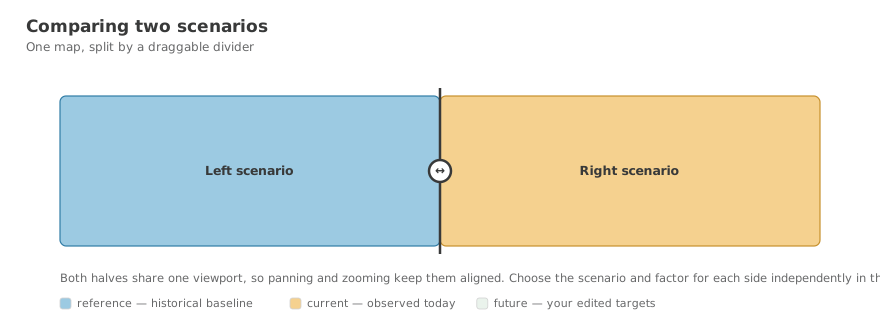
The map always renders two synchronised instances, one per scenario. The divider between them is a handle you drag, so you can move the boundary of the comparison to wherever your question is.
Because both halves share a viewport, panning and zooming keep them aligned.
Steps
- With two scenarios chosen, find the vertical divider across the map.
- Drag it left or right to reveal more of either side.
- Drag it within about 3% of an edge and it docks fully to that edge, showing one scenario alone.
- Read the floating labels along the top — they name each scenario and the active factor.
Pan and zoom as usual; both sides move together.
Hiding the divider
The Toggle map swiper control (columns icon) hides the divider entirely when you want a single uninterrupted view.
What you achieved
- You can drag the divider to compare two scenarios
- You know how to dock it to one side
- You know both halves stay synchronised as you navigate