Step 12 — Review your indicators
Goal
Read the indicator values computed for your site.
Background
Once a site exists, the application aggregates every indicator across the catchments inside it, weighted by how much of each catchment the boundary actually covers.
The Indicators page is where you see all of them at once, rather than one factor at a time.

Steps
- Click the Indicators icon in the header.
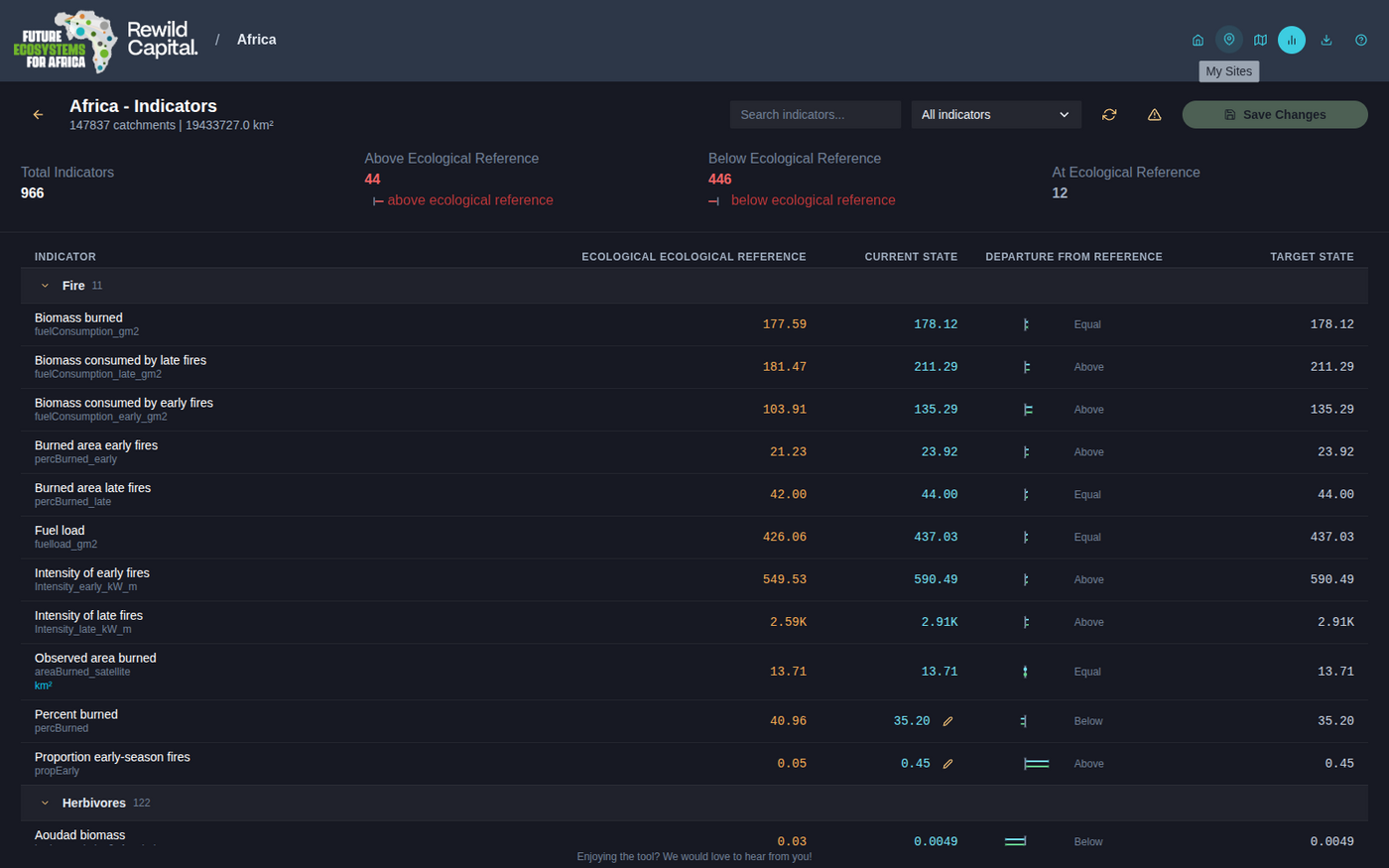
- Each row shows one indicator with its Ecological Reference, Current State, a departure-from-reference trend glyph, and Target State.
- Use the toolbar to search, filter by category, or act on the whole set:
| Control | What it does |
|---|---|
| Refresh | Re-extracts indicators from the site's catchments |
| Reset | Reverts every Target back to Current — asks first, cannot be undone |
| Save Changes | Persists your edits |
- Click the pencil on a row to inline-edit a Current State value that is a user-supplied input or missing, or a Reference value if it is missing. Expand the input to set separate lower and upper bounds instead of a single value.
If the page is empty
A site with no indicators yet shows an Extract Indicators button. For large sites this can take a little while.
What you achieved
- You can read every indicator computed for your site
- You can search and filter them by category
- You can supply missing values and re-extract