Step 9 — Work with several panes
Goal
Use grid view to watch several factors at once.
Background
One factor at a time is fine for a specific question. Grid view is for the moment you want to see whether two things move together.
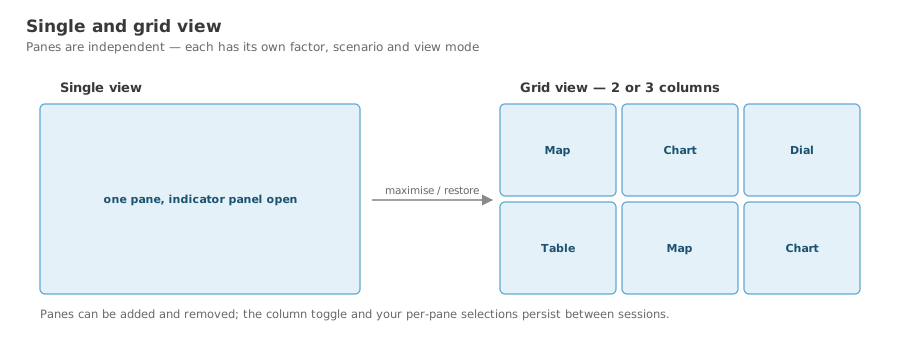
Every pane is independent: its own factor, its own scenarios, its own view mode.
Steps
- From single view, click the grid icon on the pane toolbar.
- You get a grid of independent panes — six by default.
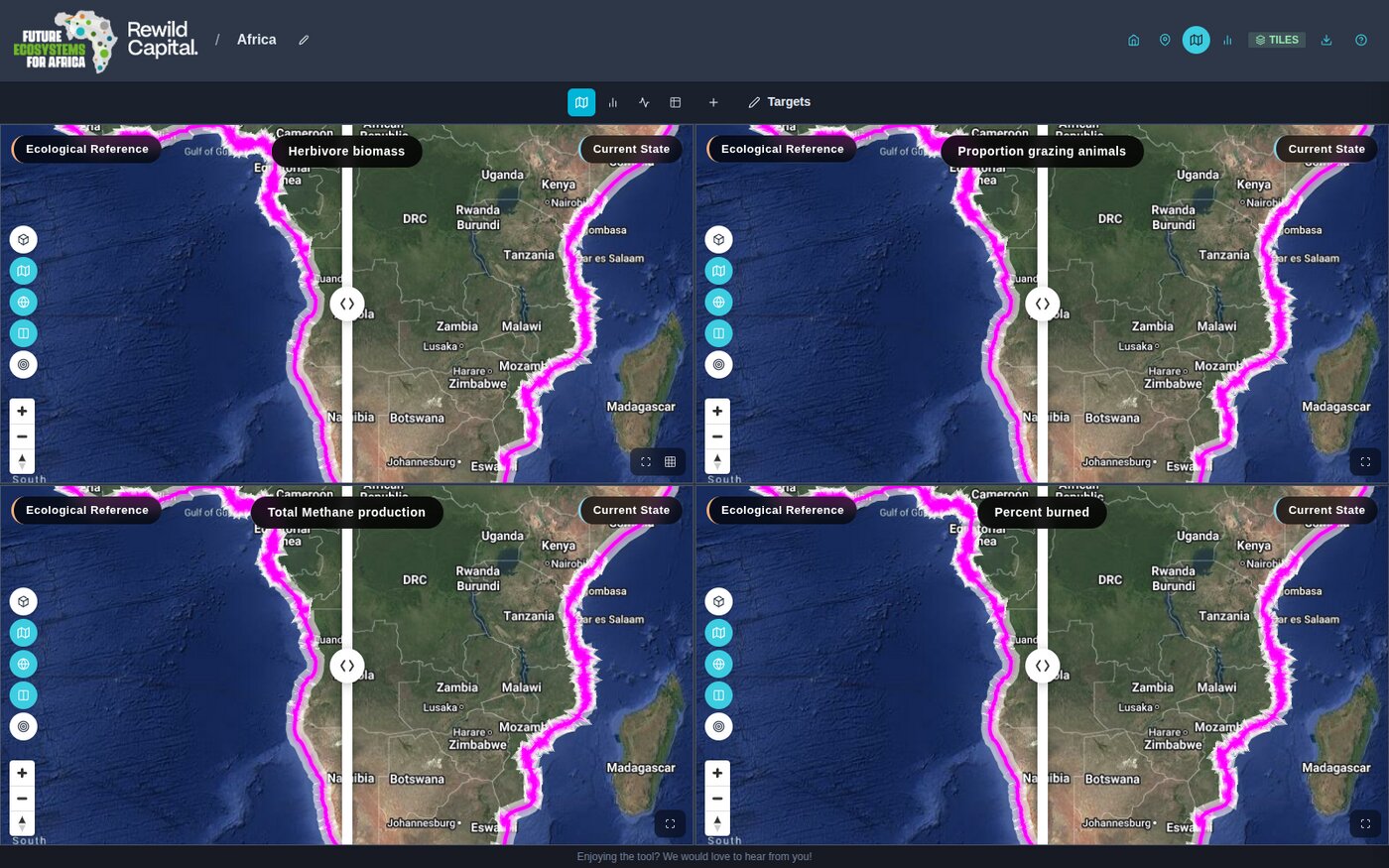
- Configure each pane separately using its own toolbar.
-
Use the toolbar above the grid to:
- set all panes at once to Map, Chart, Dial or Table
- Add pane (+)
- toggle between 2 and 3 columns
- open Targets, once the site has indicators
-
Click the maximise icon on any pane to focus it as a single pane with its indicator panel open. Click it again to return.
Your layout, column count and per-pane selections persist between sessions.
Identify mode is unavailable here
With several panes on screen a click would be ambiguous, so identify mode is offered in single-pane view only.
What you achieved
- You can switch between single and grid view
- You can configure each pane independently
- You can set every pane at once, and add or remove panes