62. Harvest External Taxonomy from TaxonWorks¶
62.1 Overview¶
Import taxonomy from a TaxonWorks instance into BIMS by providing the instance URL, a project token, and a root taxon ID. The harvester fetches all taxa in the project and recursively imports the subtree beneath the chosen root.
62.2 Prerequisites¶
- This page is only available to admin users.
- You need the following from your TaxonWorks project:
- Base URL of the TaxonWorks instance (e.g.,
https://sfg.taxonworks.org) - Project Token - the public API token for your project
- Taxon Name ID of the root taxon to harvest from (use the search helper on the page if you do not know it)
- Base URL of the TaxonWorks instance (e.g.,
62.3 Accessing the Harvest Page¶
Navigate to /harvest-taxonworks/ in your BIMS instance.
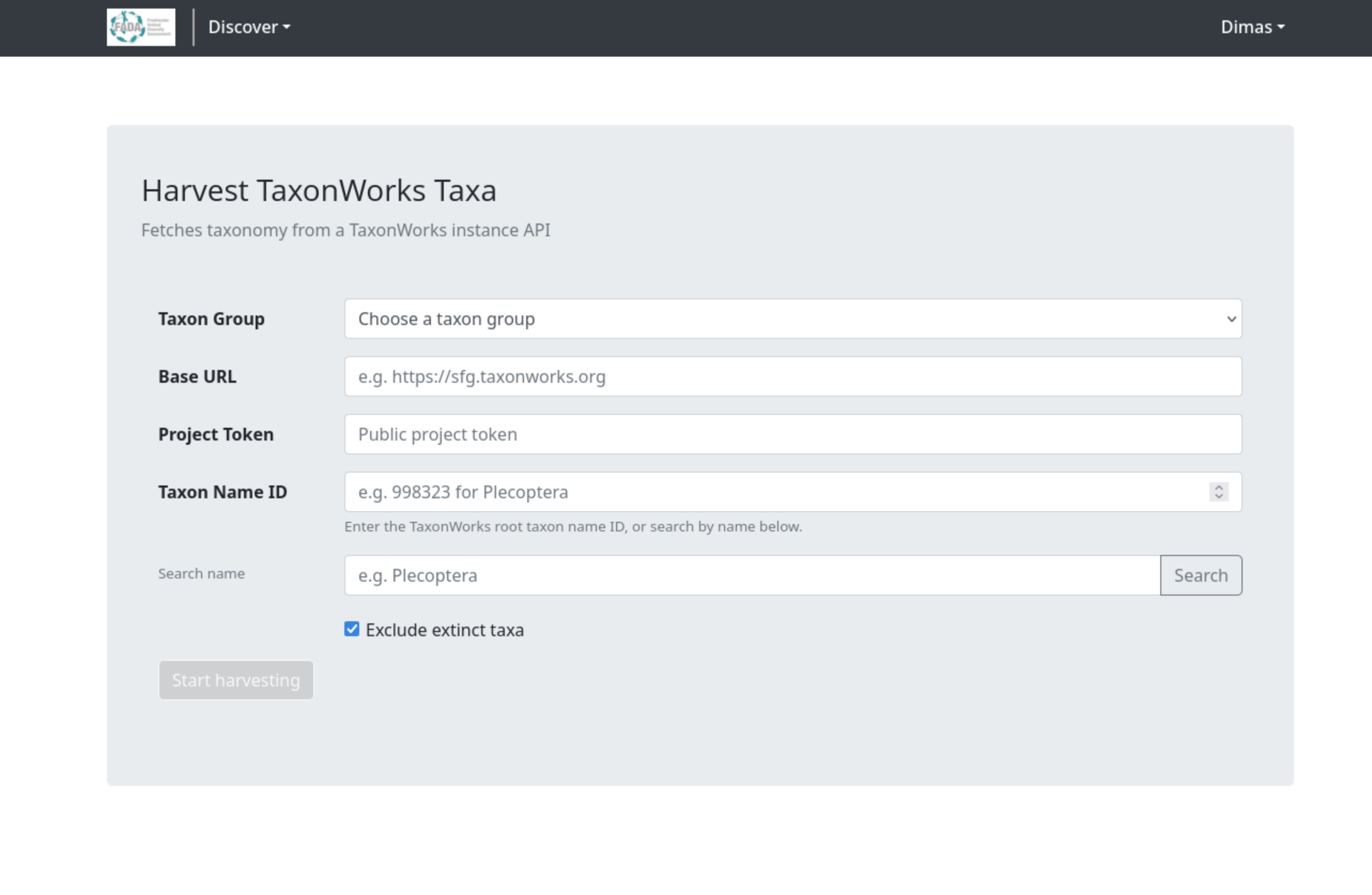
62.4 Starting a Harvest Session¶
62.4.1 Step 1 - Load a Previous Configuration (Optional)¶
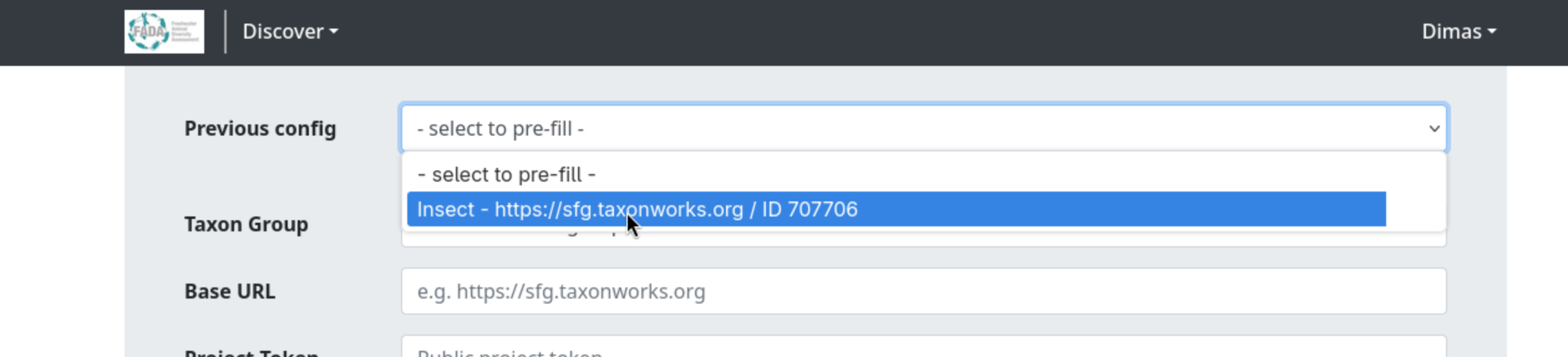
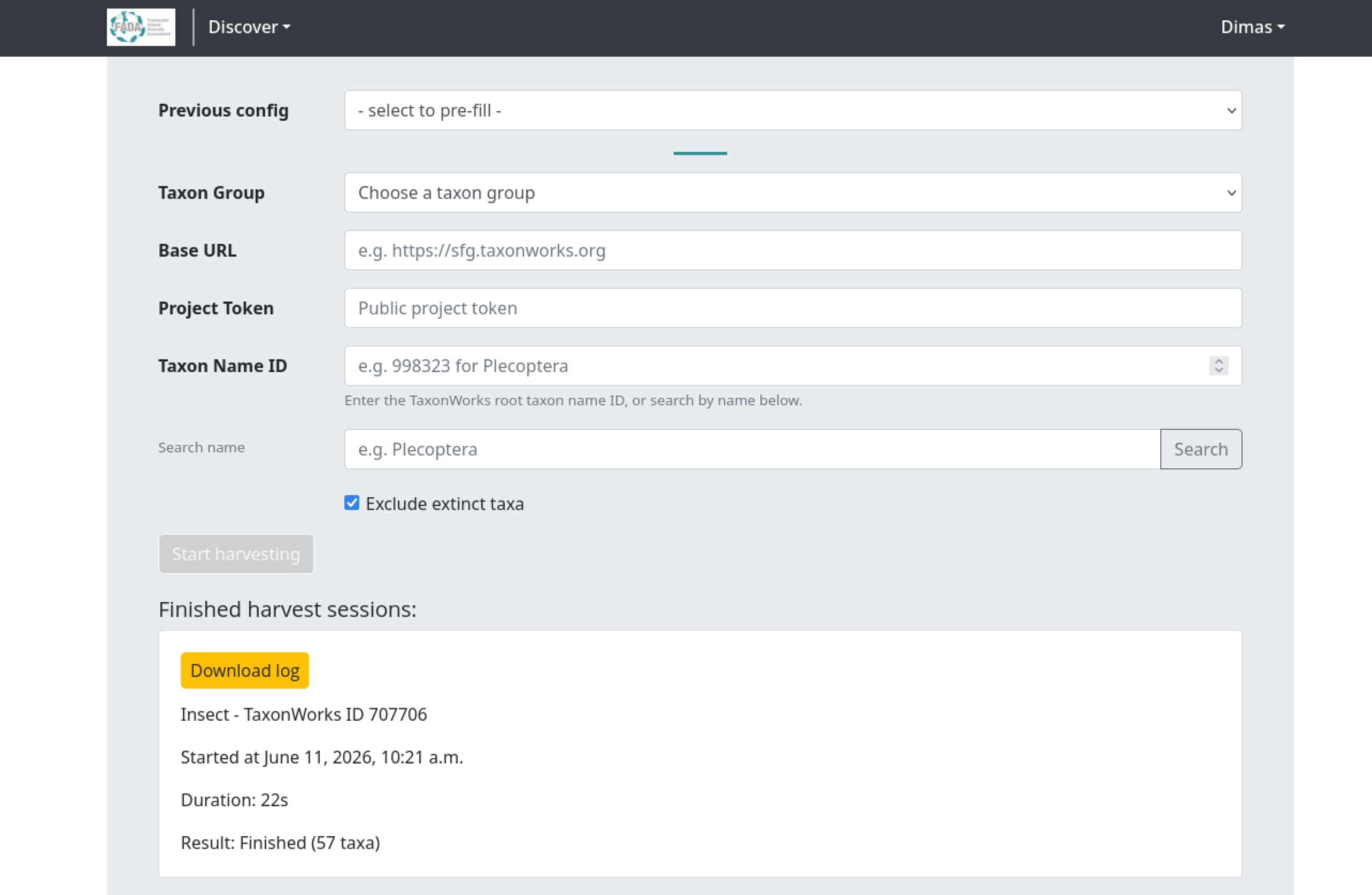
If you have run a harvest before, a Previous config dropdown appears at the top of the form. Selecting an entry pre-fills all fields with the settings from that prior run.
62.4.2 Step 2 - Select a Taxon Group¶
Choose the taxon group to which the harvested taxa will be linked.
If the group you need does not exist yet, create it first via Taxa Management (/taxa-management).
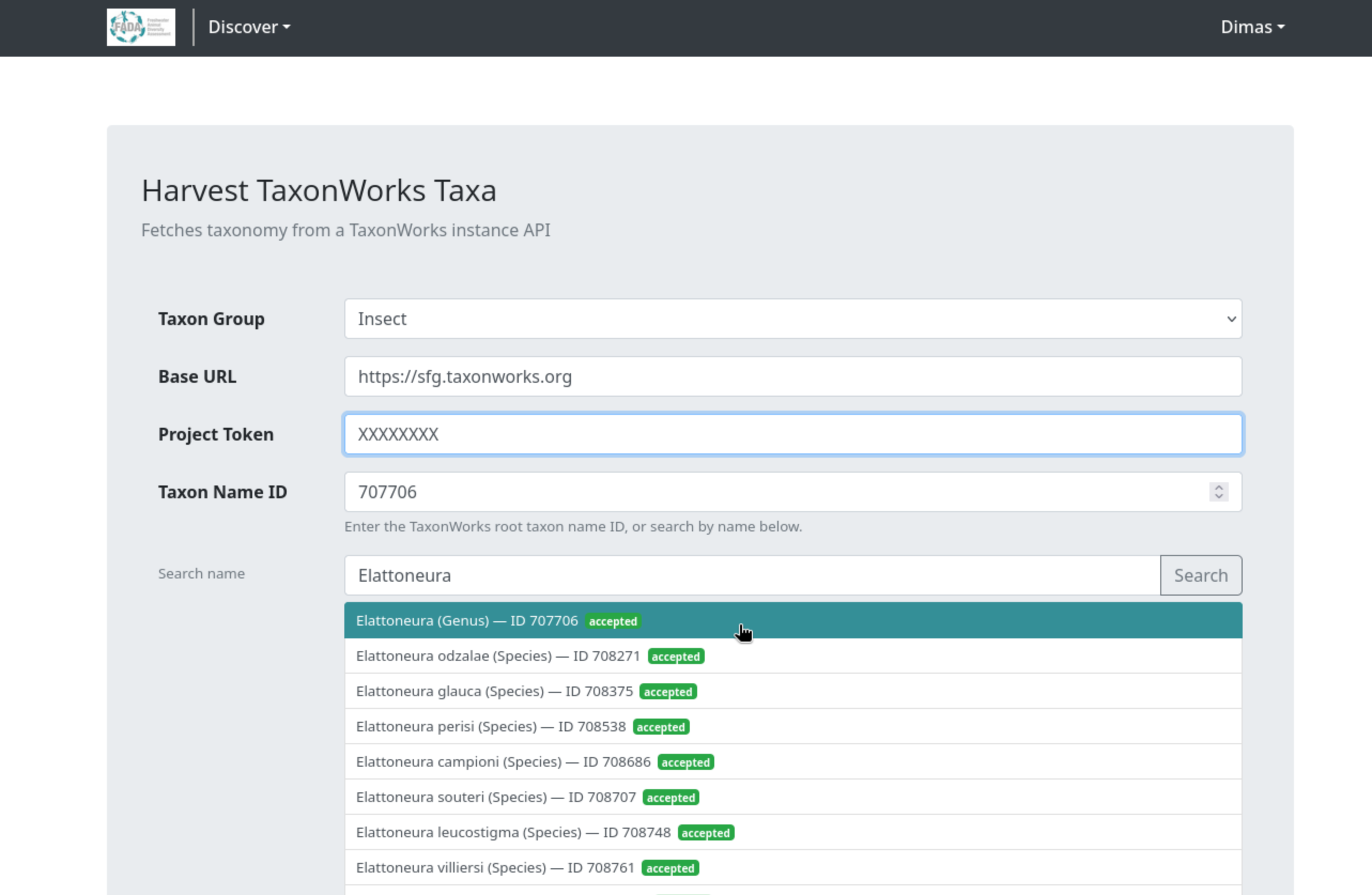
62.4.3 Step 3 - Enter the TaxonWorks Connection Details¶
Fill in the three required fields:
| Field | Description | Example |
|---|---|---|
| Base URL | Full URL of the TaxonWorks instance | https://sfg.taxonworks.org |
| Project Token | Public API token for the project | abc123xyz |
| Taxon Name ID | Numeric ID of the root taxon to harvest | 998323 |
To find the Taxon Name ID, use the Search name helper below the field: enter a taxon name, click Search, and click the matching result to fill the ID automatically. The search requires Base URL and Project Token to be filled first.
62.4.4 Step 4 - Set Options¶
Exclude extinct taxa (checked by default) - taxa marked with the dagger symbol (†) in TaxonWorks are skipped along with their descendants.
62.4.5 Step 5 - Start the Harvest¶
Once all required fields are filled, the Start harvesting button becomes active. Click it to submit.
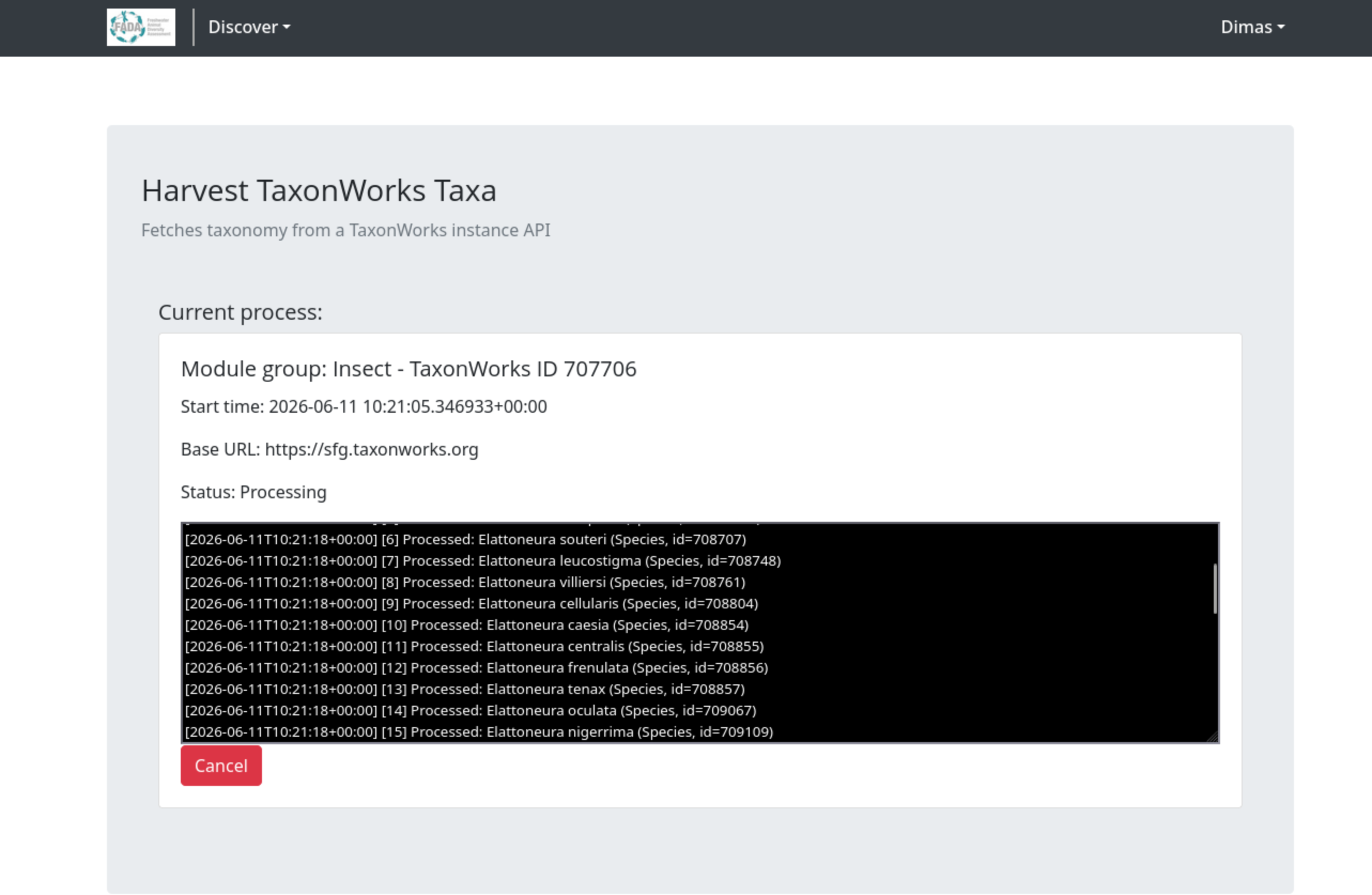
The page reloads and shows the active session panel with the module group, start time, base URL, a live status line, and a scrolling log output.
62.5 Monitoring Progress¶
The page polls for updates every second. The status line shows how many taxa have been processed (e.g., "[15] Processed...").
62.6 Canceling a Session¶
Click the red Cancel button to stop an in-progress harvest. Confirm in the dialog that appears.
The taxa already processed before cancellation are kept in the database.
62.7 Finished Sessions¶
Completed and canceled sessions appear in the Finished harvest sessions section. Each card shows:
- Taxon group name and TaxonWorks ID
- Start time and duration
- Result status (or "Canceled" in red)
- A Download log button for the full log file
62.8 What the Harvester Imports¶
For each taxon fetched from TaxonWorks, the following data is stored:
| Data | Source |
|---|---|
| Scientific name | cached and name_string fields |
| Taxonomic rank | rank field, inferred if missing |
| Taxonomic status | Accepted or synonym, from cached_is_valid |
| Author | cached_author_year field |
| Parent chain | Full lineage built from TaxonWorks hierarchy |
| TaxonWorks metadata | Stored in additional_data (source, project ID, record timestamps, taxon name ID) |
| GBIF lineage | Looked up from GBIF if the parent chain is incomplete |
Extinct taxa (those with † in TaxonWorks) are skipped when Exclude extinct taxa is checked.
62.9 Troubleshooting¶
"Start harvesting" button stays disabled All four fields (Taxon Group, Base URL, Project Token, Taxon Name ID) must be filled before the button enables.
Name search returns "Search failed" Check that the Base URL and Project Token are correct and that the TaxonWorks instance is reachable.
Session appears stuck / no log updates Contact your system administrator to check the background task workers. Cancel the session and try again once the issue is resolved.
Harvest finishes immediately with very few taxa The Taxon Name ID may not have any children in the project, or it may refer to a taxon outside the project's scope. Use the name search helper to verify the ID is correct.