Configuration
Connection Manager
Press F9 to open the Settings screen. The connection manager lets you add, edit, and remove GeoServer connections.
Adding a Connection
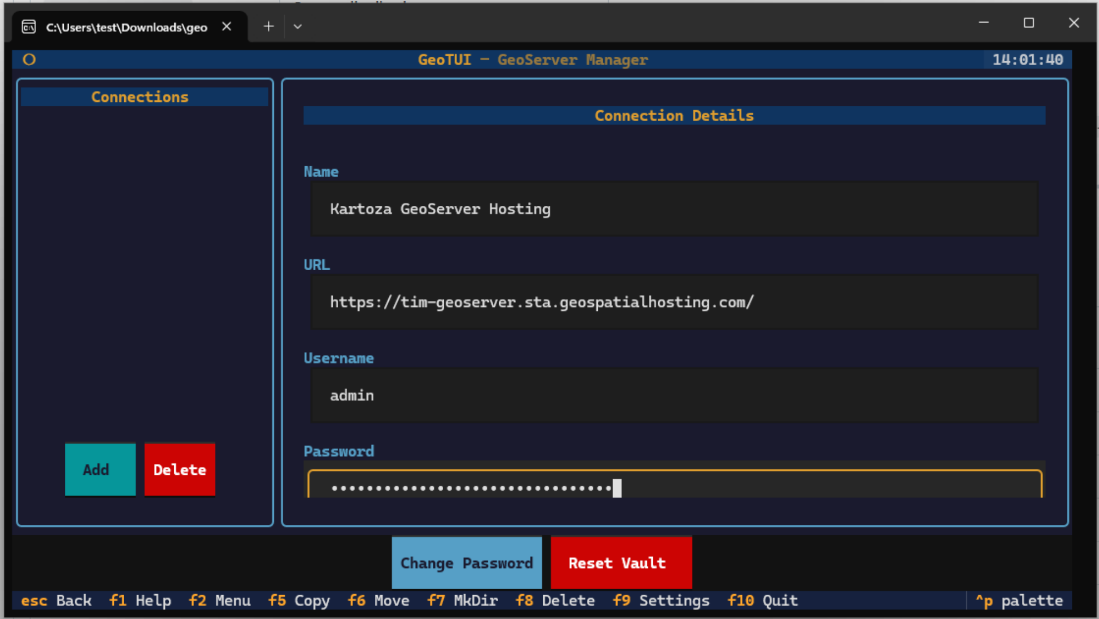
Click Add and fill in:
- Name — a friendly label for the connection
- URL — the GeoServer base URL (e.g.
https://myserver.example.com/) - Username — your GeoServer username
- Password — your GeoServer password (encrypted at rest)
Testing a Connection
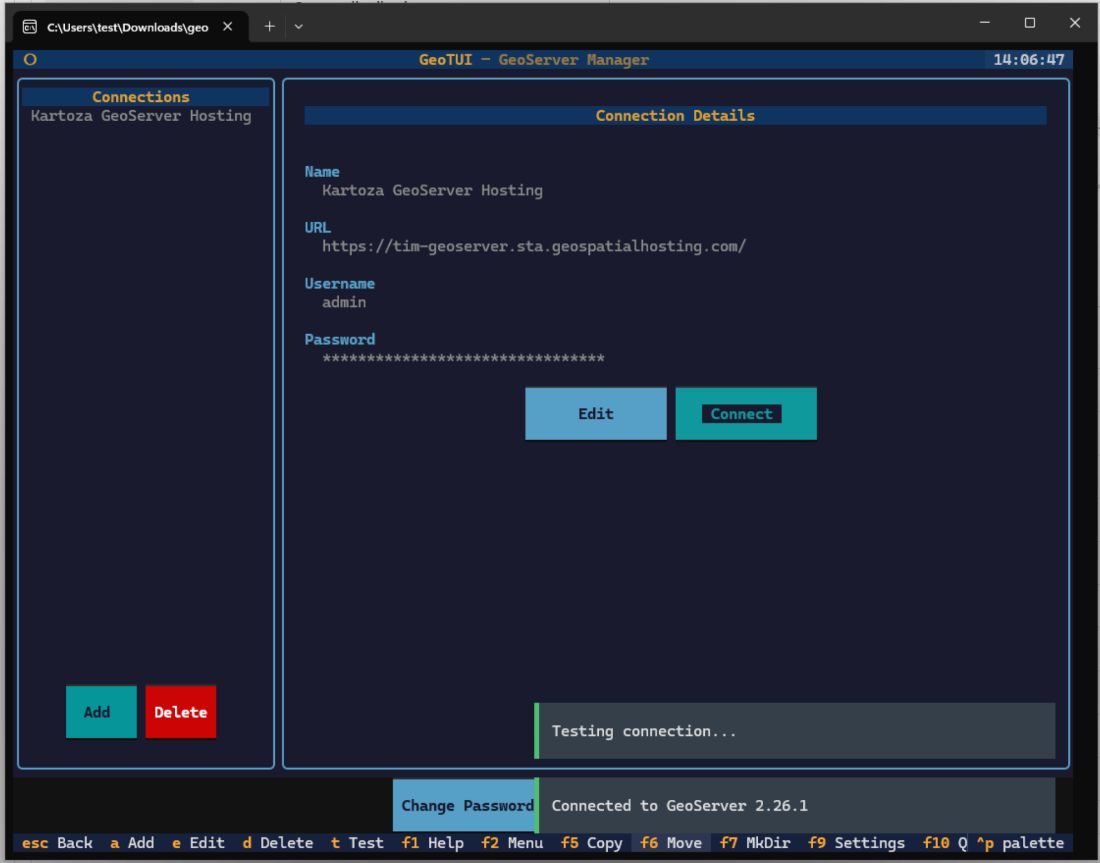
After saving, select the connection and click Connect to test it. A success message shows the GeoServer version:
Credential Vault
GeoTUI encrypts all stored passwords using Fernet (AES-128-CBC + HMAC-SHA256) with a key derived from your master password via PBKDF2-HMAC-SHA256 (600,000 iterations).
Master Password
On first use, you'll be prompted to create a master password:
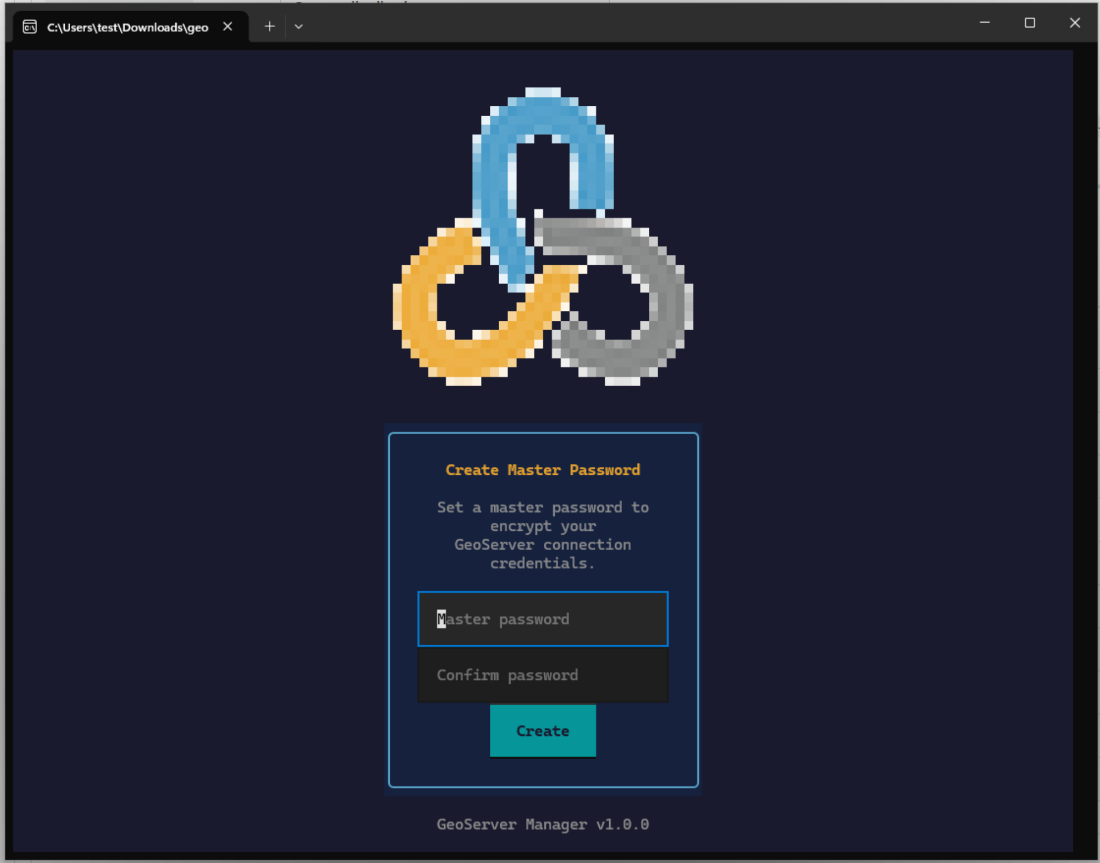
This password is required each time you launch GeoTUI. It is never stored — only the derived encryption key is held in memory.
Vault Controls
- Change Password — re-encrypt all credentials with a new master password
- Reset Vault — delete all saved connections and start fresh
Warning
There is no password recovery. If you forget your master password, the only option is Reset Vault, which deletes all saved connections.
Config File Location
GeoTUI stores its configuration following the XDG Base Directory specification:
| Platform | Location |
|---|---|
| Linux | ~/.config/geotui/config.json |
| macOS | ~/Library/Application Support/geotui/config.json |
| Windows | %APPDATA%\geotui\config.json |
The config file contains connection metadata and encrypted credentials. It is safe to back up but useless without the master password.
Language
GeoTUI supports three languages:
- English (default)
- Portuguese
- Spanish
Press Ctrl+L to cycle through languages, or set the GEOTUI_LANG environment variable:
GEOTUI_LANG=pt geotui   # Portuguese
GEOTUI_LANG=es geotui   # Spanish
Colour Palette
Press Ctrl+P to toggle the colour palette. GeoTUI uses Kartoza brand colours:
| Colour | Hex | Usage |
|---|---|---|
| Orange | #DF9E2F |
Active pane border, highlights |
| Blue | #569FC6 |
Links, secondary elements |
| Teal | #06969A |
Inactive pane border |
| Grey | #8A8B8B |
Muted text |
| Red | #CC0403 |
Errors, warnings |
 by
by