Navigation
Dual-Pane Interface
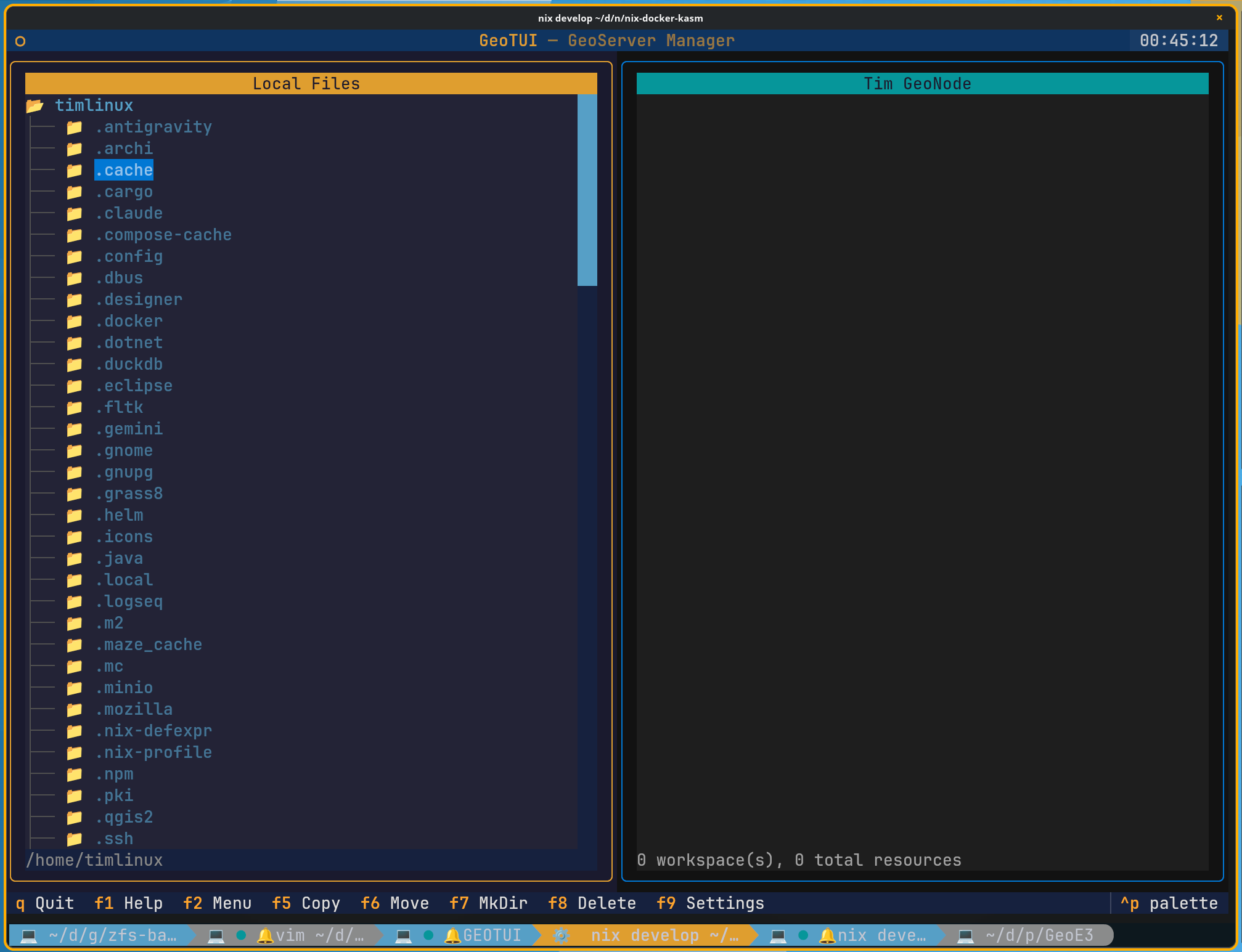
GeoTUI uses a Midnight Commander-style dual-pane layout:
- Left pane — your local file system browser
- Right pane — GeoServer connection tree showing workspaces, stores, and layers
Multiple Connections
GeoTUI supports multiple simultaneous GeoServer connections. The right pane header shows how many connections are active (e.g. "GeoServer (2)"):
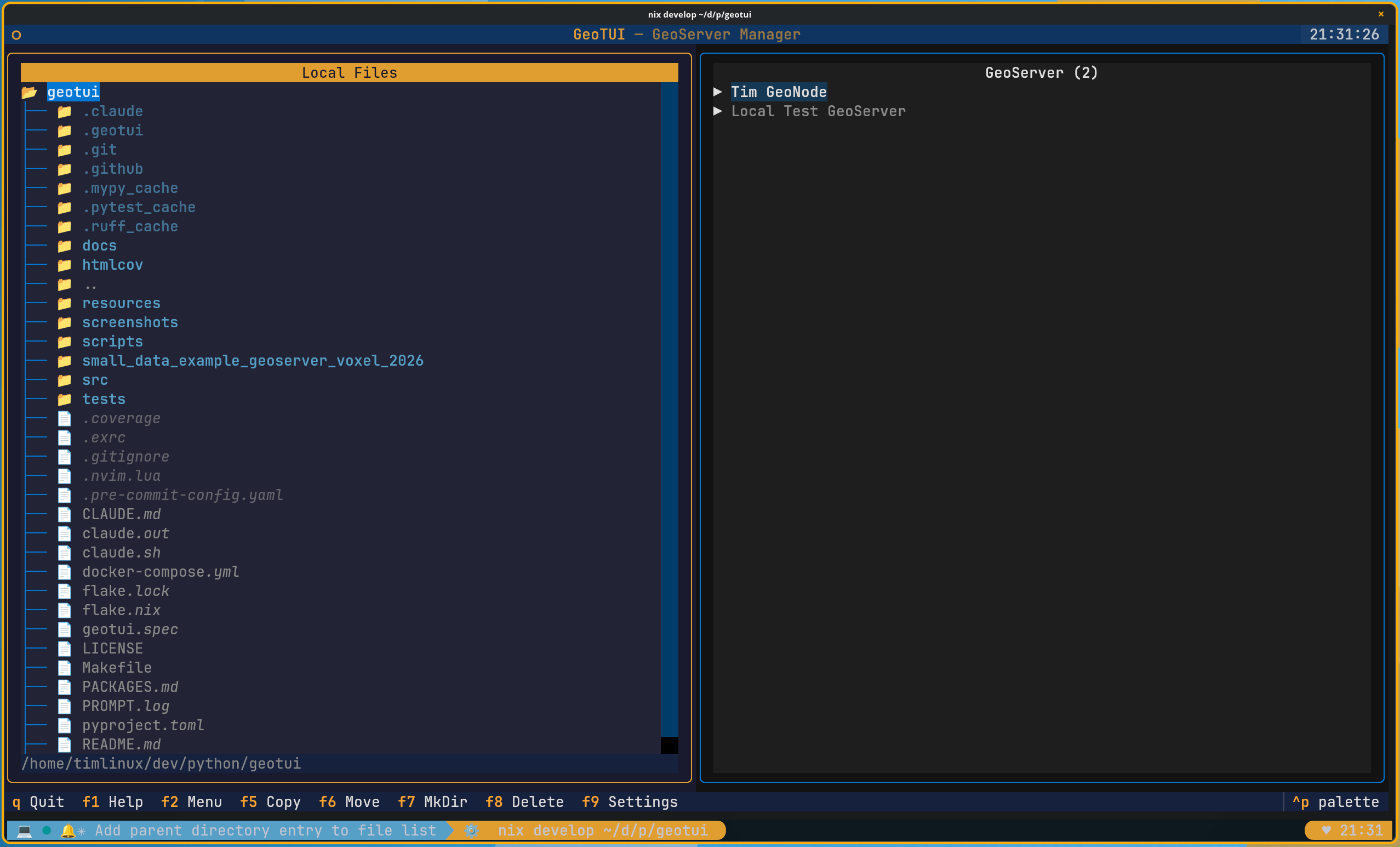
Each connection appears as a collapsible tree node. Expand a connection to browse its workspaces, and expand a workspace to see its datastores and layers.
Key Bindings
| Key | Action |
|---|---|
| Tab | Switch active pane |
| Arrow Up/Down | Navigate tree items |
| Enter | Expand/collapse directory or tree node |
| Backspace | Navigate to parent directory |
| r | Refresh the GeoServer tree |
| q | Quit |
| F1 | Help |
| F2 | GeoServer Actions menu (create workspace, etc.) |
| F5 | Copy / Publish selected files to GeoServer |
| F6 | Move |
| F7 | Create directory |
| F8 | Delete |
| F9 | Settings (connection manager) |
| F10 | Quit |
| Ctrl+L | Cycle language (EN/PT/ES) |
| Ctrl+P | Toggle colour palette |
Publishing Workflow
- In the left pane, navigate to a directory containing geospatial data (Shapefile, GeoPackage, or GeoTIFF)
- Select the file or directory you want to publish
- In the right pane, select the target workspace
- Press F5 to publish
GeoTUI will:
- Create a new datastore on the GeoServer
- Publish all layers from the data source
- Show a progress bar during upload
- Generate a PDF report summarising the operation
Pane Indicators
The active pane is highlighted with the Kartoza orange border. The inactive pane uses the teal/cyan border.
 by
by