Keyboard remapping
GISNIX ships one keyboard layer built on kanata, a userspace remapper that reads raw keyboard events and rewrites them before X11/Wayland ever sees them. It applies to every keyboard on the machine — there is nothing to configure per board unless you plug in something with a genuinely different physical layout (see Adding a second keyboard below).
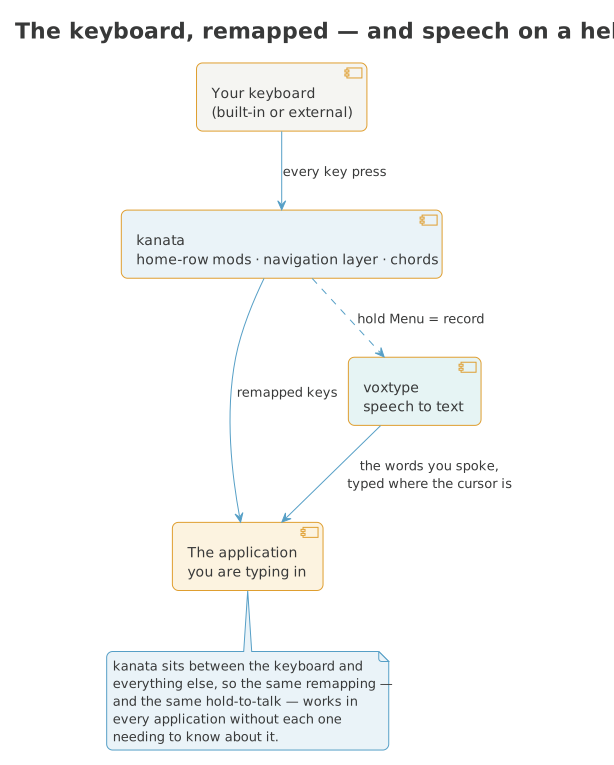
kanata sits between the keyboard and every application, so the same remapping — and the same hold-to-talk speech-to-text — works everywhere:
It ships in the services-device-input-kanata bundle, which is on by
default on every GISNIX install — including a minimal one — so the
home-row modifiers work the moment you first log in, with nothing to set
up. You only lose it if you deliberately remove the line from
hosts/<name>/config.nix. It needs no vendor hardware and is a separate
bundle from services-device-input (Bazecor, OpenRazer, Piper), which
stays opt-in.
Home-row modifiers
Tap a home-row key and it types the letter. Hold it past 500ms and it becomes a modifier instead. Hold two together and they stack.
| Key | Tap | Hold |
|---|---|---|
a |
a | Super |
s |
s | Alt |
d |
d | Ctrl |
f |
f | Shift |
j |
j | Shift |
k |
k | Ctrl |
l |
l | Alt |
; |
; | Super |
Holding d and f together, for instance, gives you Ctrl+Shift — the two
modifiers combine the same way pressing two physical modifier keys would.
A held modifier applies to whatever key you press next on either hand, so
"hold d, tap c" is Ctrl+C.
The 500ms hold window is deliberate: it is well past the length of an
ordinary keystroke, so nothing you type in the normal course of typing
gets mistaken for a modifier. If you find yourself typing fast enough to
trip it — or slow enough that a real hold feels sluggish — the timeout is
modHoldTimeout in kanata-config.nix.
Bracket chords
Press two adjacent keys together — a genuine press-together within 40ms, not a fast roll — and you get a bracket instead of two letters.
| Chord | Types |
|---|---|
q+w |
{ |
o+p |
} |
a+s |
[ |
l+k |
] |
x+z |
< |
m+, |
> |
a+s and l+k double as home-row mods (Super/Alt, Shift/Ctrl) — press
them more than 40ms apart, which is how you'd normally hold a modifier
anyway, and they behave exactly as the mod table above describes. Only a
genuine press-together inside the window fires the bracket.
The chord lines live in chords-us.kbd / chords-pt.kbd next to
kanata-keyboard.nix, which picks between them by the host's
kanataLayout. Bigram-to-word expansion — another chord type kanata
supports, where typing io finishes it as ion — is not enabled by
default, since it fires mid-word on ordinary typing. Pass your own
expansionsFile to kanata-config.nix if you want it.
Clipboard holds
Hold x, c, or v instead of tapping it, and you get cut, copy, or
paste. Tap normally and you still get the letter.
| Key | Tap | Hold |
|---|---|---|
x |
x | Ctrl+X (cut) |
c |
c | Ctrl+C (copy) |
v |
v | Ctrl+Shift+V (paste) |
Paste is Ctrl+Shift+V, not the more common Ctrl+V, because Ctrl+Shift+V
works in a terminal and plain Ctrl+V doesn't. Cut and copy keep their
ordinary bindings, so holding c in a terminal still sends SIGINT via
Ctrl+C, same as tapping it always has.
Navigation layer
Hold Space and the layout underneath your left hand becomes a mouse; your right hand becomes arrow keys and paging.
| Key | Action |
|---|---|
e |
mouse up |
s |
mouse left |
d |
mouse down |
f |
mouse right |
w |
left click |
r |
right click |
t |
scroll up |
g |
scroll down |
h j k l |
left / down / up / right (arrow keys) |
n |
Home |
u |
Page Down |
i |
Page Up |
o |
End |
m, ,, . |
mouse speed: half, quarter, tenth |
Release Space or Menu and the layer disappears; every key underneath goes back to typing normally.
Dictation (Super STT)
Super STT ships too — press a shortcut, speak, press again, and it types the transcription at your cursor. Pick a local model (Whisper, say) rather than one of its cloud backends and nothing you say leaves the machine. It replaced Handy, whose Settings window had started permanently white-screening, which itself had replaced voxtype (too slow).
gisnix wires up the daemon as a systemd user service (systemctl
--user status super-stt), so it's running from login — but, same as
Handy before it, the keyboard shortcut is not part of the kanata
remapping. The daemon's own socket lives under your session's
XDG_RUNTIME_DIR, which kanata's system-level service has no path to —
the same wall voxtype's push-to-talk key and Handy's shortcuts hit
earlier. Bind it by hand instead:
- First run, pick a model via the
sttCLI or the Super STT app. On a fleet machine, pick a local model (Whisper) — leave any cloud backend it offers (OpenAI, Deepgram, Mistral) switched off, so recordings never leave the machine. - Settings → Input devices → Keyboard shortcuts → Custom shortcuts, add
one running
stt record --write(Super+Space is upstream's own convention, if you want to match it).
If something's not transcribing, check systemctl --user status
super-stt before suspecting the model or shortcut — the unit restarts
on crash, but a model that was never picked will not automatically fix
itself.
herdr layer
Hold Caps Lock and hjkl drive herdr. The base bundle installs herdr on
every machine, so this layer is there with nothing to turn on. A tap still
toggles Caps Lock as normal.
| Key | Action |
|---|---|
h |
previous tab |
l |
next tab |
j |
next workspace |
k |
previous workspace |
u |
down the agent list |
i |
up the agent list |
n |
new tab |
s |
edit scrollback — opens the pane's history in $EDITOR for keyboard-only selection and copy |
r |
toggle kanata's own macro recorder (not herdr's) — press once to start, again to stop; a click plays either way |
p |
play back the recorded macro |
e |
types your email address, if you've set one (see below) |
herdr's own previous agent/next agent binds ship unbound; the base
bundle's dotfiles/herdr/config.toml binds them to prefix+u and prefix+i
so u/i above have something to send. Leave that file alone if you
touch this layer — it is herdr's contract, read once at startup.
The email key
e is silent until you tell it whose keyboard this is. Add a line to your
own user file:
Rebuild, and holding Caps and pressing e types that address. Nothing is
hardcoded per machine: the key resolves the active login session to a
username at press time, then looks that username up in
kartoza.userEmails — so on a shared machine, tim's hold types
tim@example.com and alice's hold types whatever she set in
users/alice.nix, from the same physical key. An account with no entry
here gets silence when e is pressed.
Unmapped characters refuse rather than guess: the generated script only
emits keycodes for a-z, 0-9, ., @, and -, so an email address
using anything else won't type at all rather than typing something close
but wrong. @ and - sit on different physical keys under us vs pt,
and the script picks the right one from kanataLayout.
What is not here by default: an aerc (mail client) macro set —
compose, reply, file to folders, contacts. GISNIX does not install aerc,
so this stays a separate opt-in (kartoza.kanata.aercLayer = true;) for
a host that actually runs it, rather than shipping mail-client keybinds
to everyone by default.
aerc mode (opt-in)
A host with kartoza.kanata.aercLayer = true; gets a second thing the
herdr trigger key can reach: hold it, and — instead of herdr — you get
aerc (a mail client) commands instead. Each key types the aerc command
and presses Enter, except v/b which leave the command line open for
you to finish typing.
| Key | Action |
|---|---|
h |
previous account |
l |
next account |
j |
next folder |
k |
previous folder |
s |
file to Spam |
a |
file to Archive |
r |
reply-all |
e |
types your email address, if you've set one (see above) |
c |
compose a new message |
f |
forward the selected message |
d |
delete the selected message |
g |
reopen a postponed draft |
y |
show/hide full headers |
u |
toggle read/unread |
i |
toggle the star/flag |
m |
enter/leave visual mark mode |
v |
primes :search — type the terms yourself, then Enter |
b |
primes :filter — type the terms yourself, then Enter |
n |
add this message's sender as a contact |
o |
browse/edit contacts |
obs mode (opt-in)
A host with kartoza.kanata.obsLayer = true; gets a third: hold the
trigger key and you reach OBS scene switches instead. Each key is a
fire-and-forget call to obs-cli over obs-websocket, so nothing is
typed and it is safe to hold regardless of what window has focus. The
scenes themselves (and the branded Kartoza/QGIS look) come from
desktop-multimedia's obs-scenes.nix — run
gisnix obs-setup <kartoza|qgis> once, with OBS open, to build them.
Rows below are listed in the order j/k actually cycle through — Intro first, every working/content scene, then Outro, then BRB.
| Key | Action |
|---|---|
i |
Intro scene |
w |
Webcam scene |
s |
Screen scene |
c |
Screen+Cam scene |
o |
Screen+Overlay scene |
t |
Terminal scene — camera full-canvas, a terminal/window capture on top at reduced opacity (the "VU-meter overlay" look) so both read at once |
e |
Outro scene |
b |
BRB scene |
j |
next scene (same order as above, wraps around) |
k |
previous scene (same order as above, wraps around) |
Which mode holding the trigger key reaches is a persistent choice, not something you pick each time: hold the trigger key, tap Space while still holding it, and release — that's the cycle. It doesn't change anything about the current hold; it advances which layer the trigger key reaches the next time you hold it (herdr -> aerc -> obs -> herdr, skipping whichever of aerc/obs is off on this host), and plays a short beep so the switch has feedback beyond memory. Repeat the same gesture to keep stepping round the cycle.
Layout diagrams below don't yet include an obs-layer picture —
gisnix keyboard-diagramsonly draws herdr/aerc today. The key table above is accurate; the SVG is a follow-up.
Layout diagrams
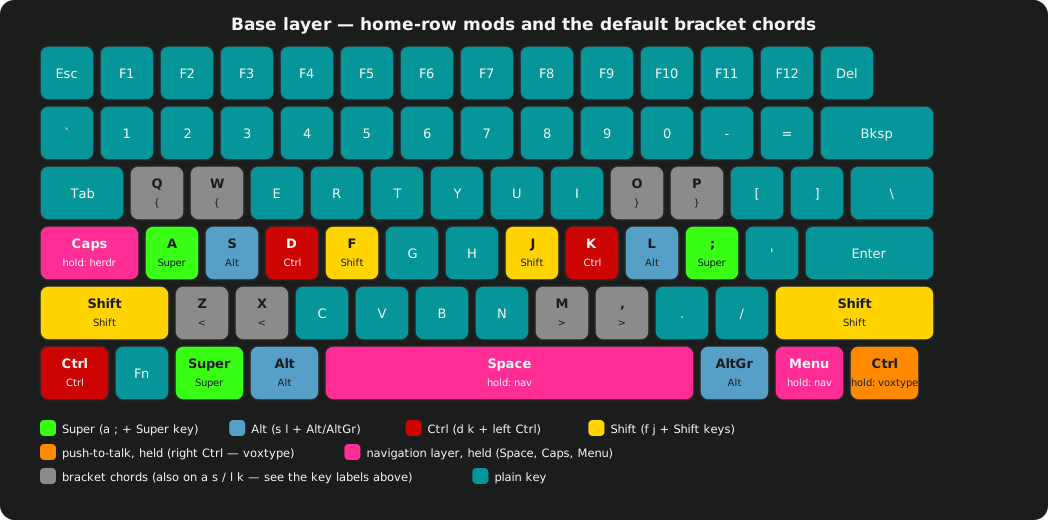
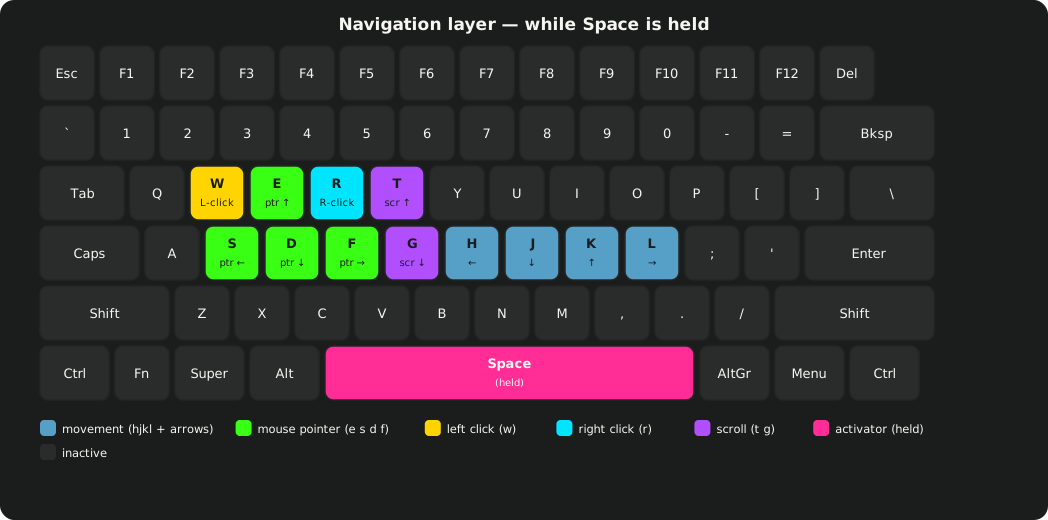
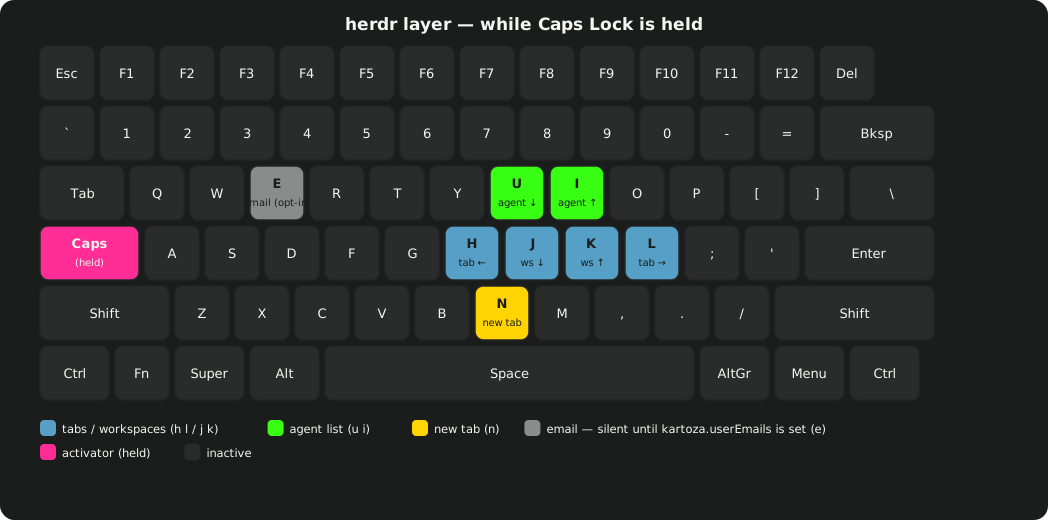
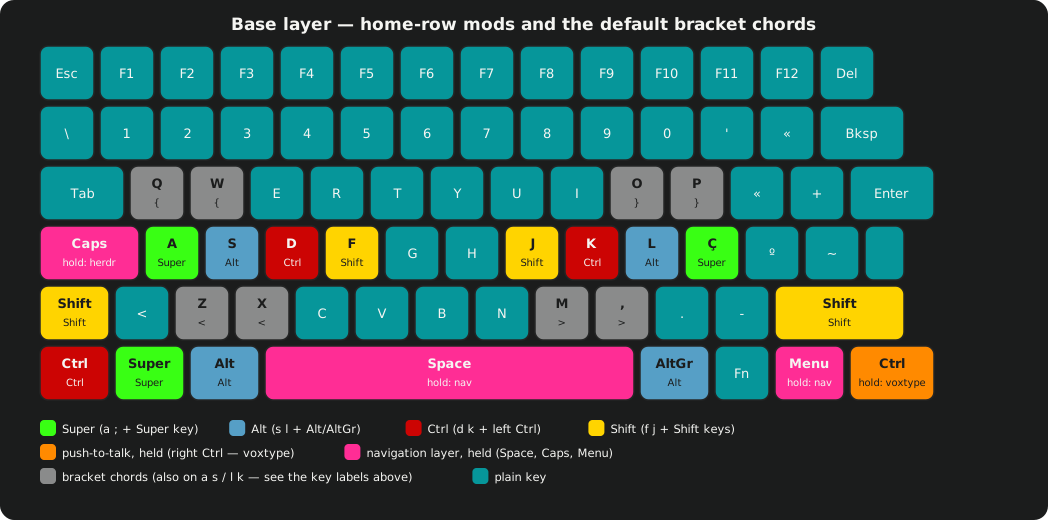
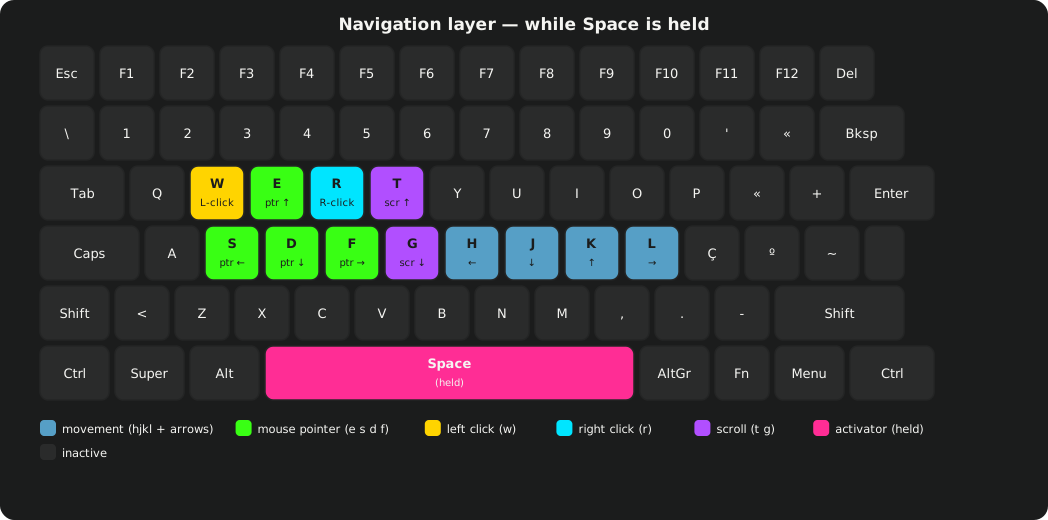
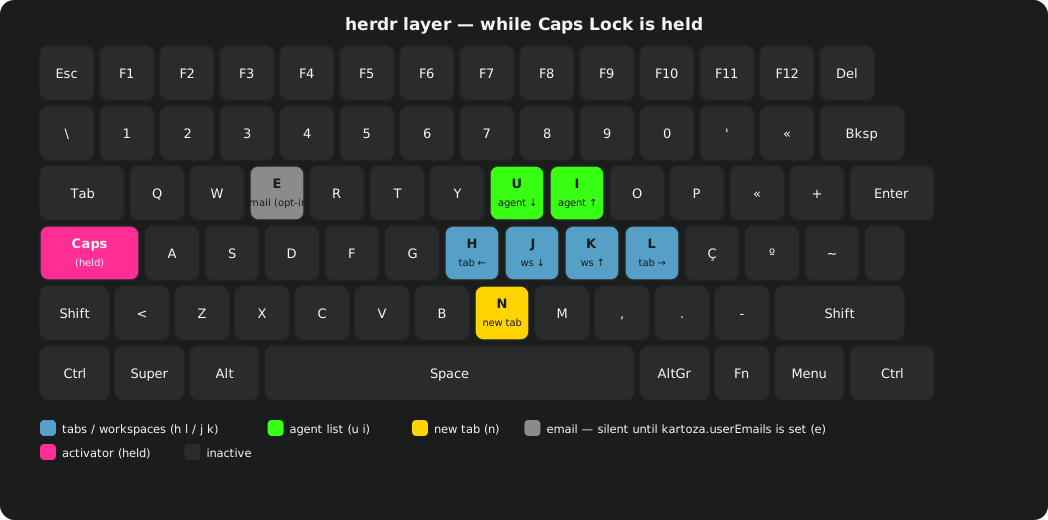
Here is the whole layout drawn out, so you can see where everything sits.
There are three layers, and one set of diagrams per kanataLayout value —
US ANSI (the default) and pt-PT ISO. They are generated straight from the
same key tables kanata-config.nix uses (gisnix keyboard-diagrams), so
they always match what the machine actually does.
The base layer is what you type on normally. Its trick is the home-row modifiers: hold A for Super, S for Alt, D for Ctrl, F for Shift — and the mirror image on the right hand, J Shift, K Ctrl, L Alt, ; Super. Tap those keys and they type their letter as usual; only holding turns them into a modifier, so your fingers never leave the home row to reach for Ctrl or Alt. The diagram also shows the keys that reach the other layers on a hold: Space or Menu for navigation, and Caps for the herdr layer.
The navigation layer (hold Space or Menu) turns the right hand into arrow keys and mouse controls without leaving the keyboard.
The herdr layer (hold Caps) is the one the herdr clipboard-history
tool listens on.
Toggling it off
kanata-toggle    # disable/re-enable remapping for every kanata instance
kanata-status    # which instances are running
kanata-debug     # service status, input devices, recent logs
A raw, unremapped keyboard is sometimes what you want — troubleshooting a
game that reads raw scancodes, or handing the machine to someone who
doesn't use this layout. kanata-toggle stops the daemon; the physical
keyboard reverts to whatever it would type without it, and toggling again
turns it back on.
Adding a second keyboard
The default instance matches every keyboard on the system, so a second ordinary, row-staggered board picks up the same home-row mods and navigation layer as the first the moment you plug it in.
Write a separate kanata instance only when a board's physical layout doesn't match a standard keyboard closely enough for the shared layer to make sense on it — an ortholinear or split board, one you want to keep at its factory layout, or one that should carry its own chord set. Run:
It lists connected keyboards with their device paths and prints a
services.kanata.keyboards.<name> block scoped to the one you pick, ready
to paste into your host's own configuration.