Post-install configuration
Everything in ~/nixos-config describes what software your machine
carries. How your desktop looks and behaves — scaling, panel layout,
keyboard shortcuts — is a different kind of thing: personal, per-user
state that COSMIC keeps in your home directory (under ~/.config/cosmic).
You set it once by clicking through Settings, and it survives every
rebuild and every GISNIX update, because nothing on this page touches the
flake at all.
This page walks through the settings worth visiting in your first session, including two commands GISNIX ships specifically so you can put them on a key.
Display scaling
Open Settings → Displays. Each connected display has its own Scale setting, adjustable in 25% steps. On a HiDPI laptop panel — anything around 2K resolution at 13–14 inches — 125% or 150% is usually where text becomes comfortable without everything turning cartoonishly large. External monitors keep their own scale, so a sharp laptop panel and an ordinary 27-inch desktop screen can each be set to what suits them.
The same page handles resolution, refresh rate, and the arrangement of multiple displays (drag the rectangles so the layout on screen matches the layout on your desk).
Arranging the panel and dock
COSMIC splits the bar into two parts, each configured under Settings → Desktop:
- The panel — the strip with the app library button, workspaces, clock, and status applets. Desktop → Panel controls its position, size, and which applets appear; the applet list lets you add, remove, and reorder them.
- The dock — the row of application launchers. Desktop → Dock controls the same for it.
To put an application on the dock, find it in the app library (the top-left panel button, carrying the Kartoza logo on a GISNIX machine) or start it, then right-click its icon and pin it. Drag pinned icons along the dock to put them in the order your hands expect. QGIS, a terminal, a browser and a file manager make a sensible opening set for a GIS workstation; everything else is one app-library search away.
Custom keyboard shortcuts
COSMIC can bind any command to any key. The controls live at Settings → Input devices → Keyboard shortcuts → Custom shortcuts; Add shortcut asks for a name, the command to run, and the key combination.
Two things to know before you add one:
- Give the absolute path to the command. The shortcut runs outside
your shell, so
/run/current-system/sw/bin/screenshot-triggerworks where a barescreenshot-triggermay not. Everything GISNIX installs lives under/run/current-system/sw/bin/. - The two capture commands below end in
-triggerand-togglefor a reason. A COSMIC custom shortcut cannot launch the interactive region picker directly — a compositor bug (pop-os/cosmic-epoch#2481) means a picker started straight from a keybind never gets control of the pointer, and the selection silently does nothing. So the bound command only pokes a small background service (screenshot-listener), which owns the picker and does the actual capture. Bind the trigger, not the underlying tool.
Screenshot with annotation
Bind /run/current-system/sw/bin/screenshot-trigger — Ctrl+4 is a
comfortable choice, sitting right above the home row:
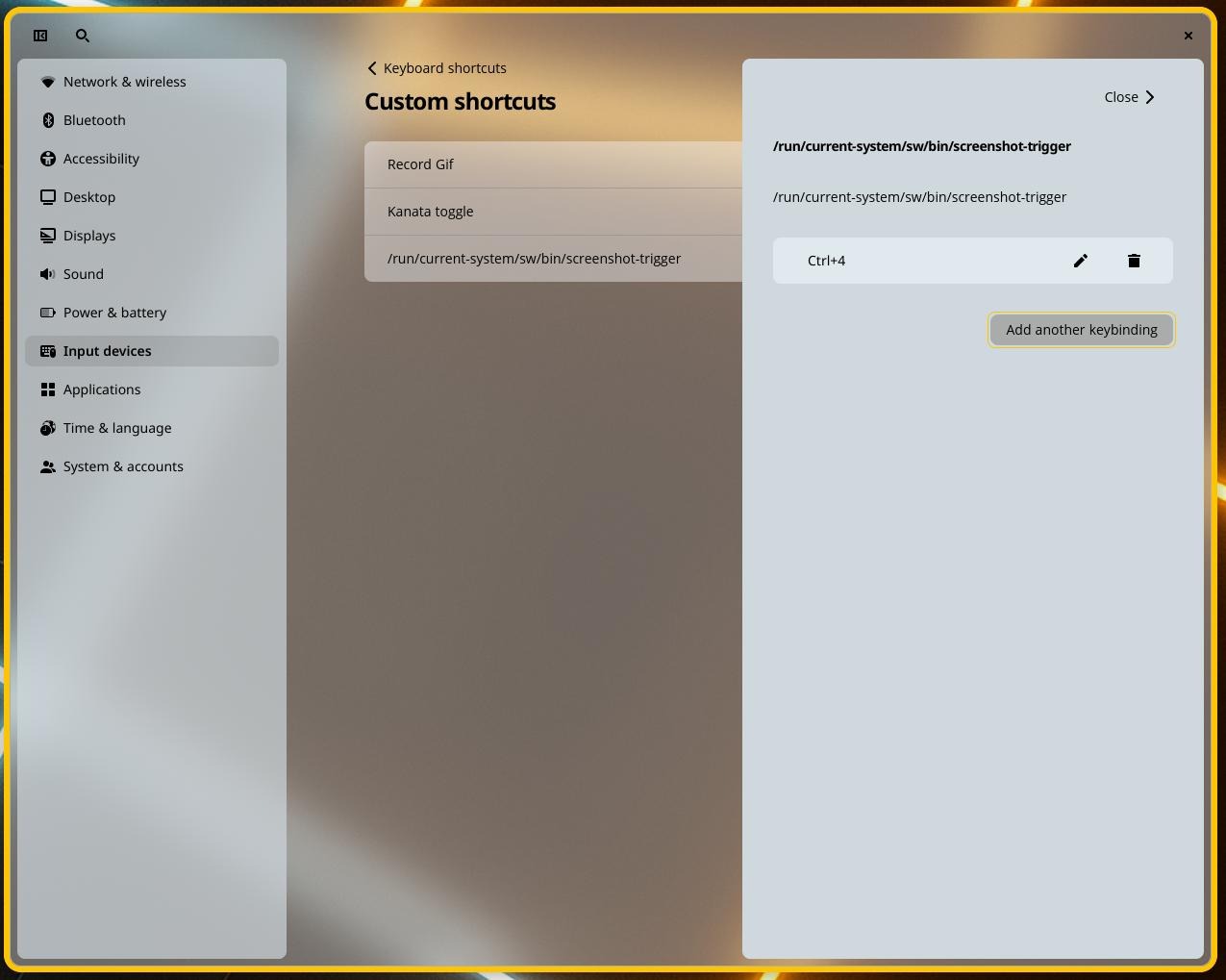
Press the key and a crosshair appears; drag out the region you want (or
press Escape to change your mind). The capture opens immediately in
Satty for annotation — arrows, boxes,
highlights, text — and the result is saved to ~/Pictures/Screenshots.
The command takes an optional mode argument, so you can bind variants to their own keys:
| Command | What it captures |
|---|---|
screenshot-trigger |
Drag out a region (the default) |
screenshot-trigger region-repeat |
The same region as last time, no picker — for a series of captures of one on-screen area |
screenshot-trigger screen |
The whole screen |
GIF screen recording
Bind /run/current-system/sw/bin/record-gif-toggle — Ctrl+5 pairs
naturally with the screenshot key beside it:
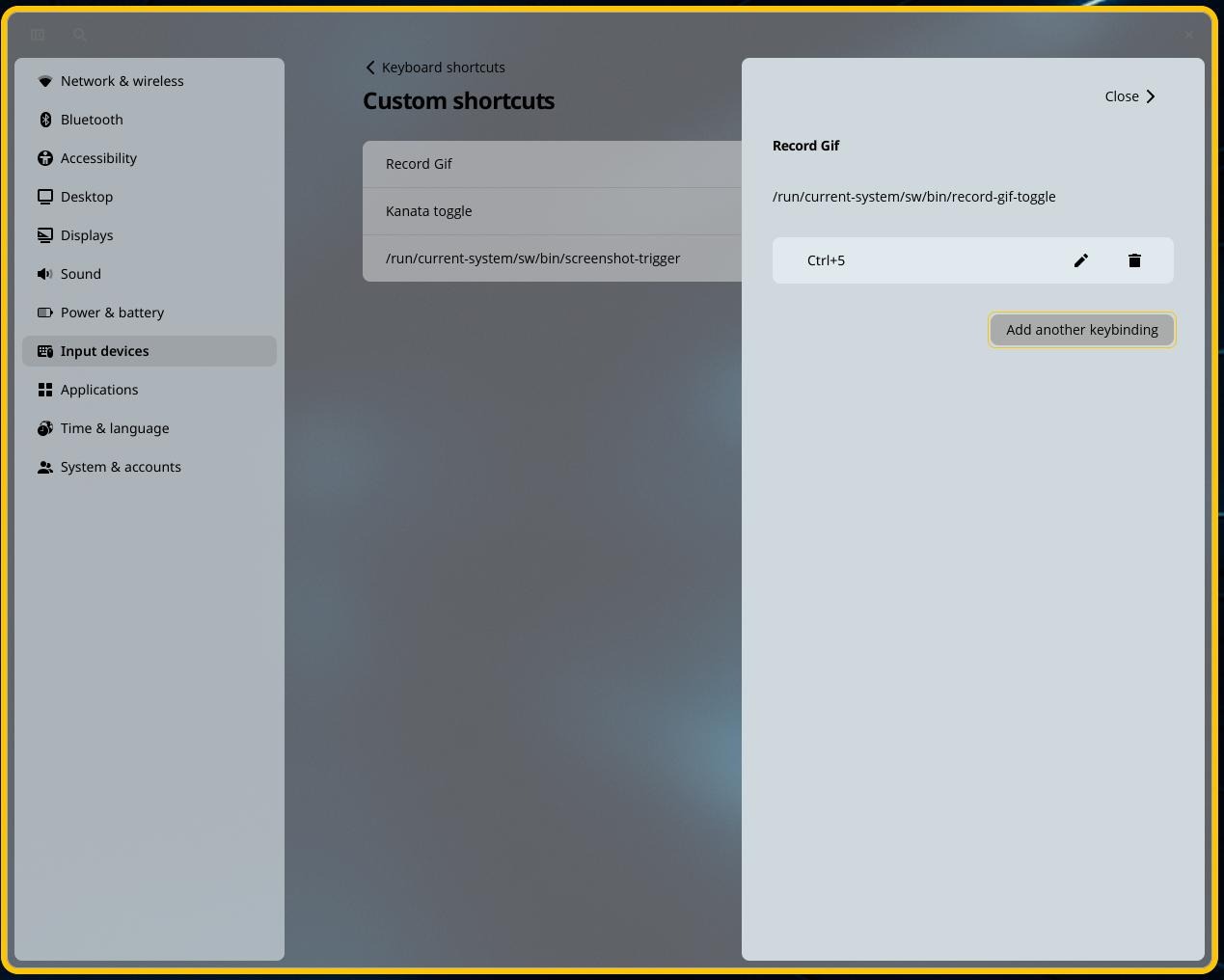
One key does both ends of the job. Press it once: the crosshair appears,
you drag out a region, and recording starts (a notification confirms the
size). Press it again: recording stops, the video is converted to a GIF,
and the file lands in ~/Videos/Recordings — the folder opens so you can
grab it. A second copy at half the dimensions is saved beside it
(…-half.gif), sized for chat windows and issue trackers where the
full-size one is too heavy. Short GIFs of a map interaction, a dialog sequence, or a bug in
motion drop straight into an issue tracker or a chat window where a video
file would be a chore.
If you would rather have a fixed-length recording, an argument caps the
duration in seconds — record-gif-toggle 30 stops itself after half a
minute if you have not stopped it first.
If pressing the key does nothing
The background service that owns the region picker may not be running. Check it with:
Logging out and back in restarts it.
On-screen keystrokes
With the desktop-multimedia bundle on board, bind
/run/current-system/sw/bin/wshowkeys-toggle — Ctrl+6 continues the
row. One press overlays every keystroke at the bottom of the screen,
each character drawn as a keycap (the Libertinus Keyboard face, SIL
OFL); press again to turn it off. Made for pairing with the GIF
recorder: viewers see what you typed, not just what happened. Set
WSHOWKEYS_FONT (a Pango spec like monospace 28) before toggling if
you want a different face.
Finding the cursor
Also from desktop-multimedia: bind
/run/current-system/sw/bin/find-cursor — Ctrl+7 keeps the row going.
It toggles click highlighting: press once and every mouse click from
then on flashes a growing yellow circle around the pointer; press again
to turn it off. For presentations and screencasts on big or many
monitors, where the viewer needs to see where you clicked.
Click highlighting needs the input group
Reading mouse clicks means reading input devices directly, which the
Wayland session does not expose to ordinary programs. Add the user to
the input group on hosts where you want this —
users.users.<name>.extraGroups = [ "input" ]; — and rebuild. It is
not granted fleet-wide on purpose: input membership also lets the
user's programs read the keyboard. find-cursor tells you if the group
is missing rather than silently doing nothing.
Branded OBS scene packs
Also from desktop-multimedia: OBS ships with its websocket server
already turned on (loopback only, no password — that is what lets the
next two things talk to it), but the branded scene collection does not
build itself. Open OBS, then run:
This builds eight scenes over that websocket connection — Intro, Webcam,
Screen, Screen+Cam, Screen+Overlay, Terminal, Outro, BRB — branded from
the real Kartoza/QGIS colours, not a hand-picked palette. It is the
one-time setup step; nothing automatic creates these on first boot, the way
gisnix obs-setup has no equivalent of Handy's own first-run wizard. Re-run
it with --force to tear down and rebuild a brand's collection from
scratch (say, after a gisnix update changes what it builds) — without
--force it leaves an existing collection alone and just switches to it.
The host's bootTheme choice (kartoza or qgis) decides which collection
OBS opens into by default, same as it already decides Plymouth/GRUB
branding — but only once that collection actually exists; run
gisnix obs-setup for the matching brand first.
Switch between the eight scenes without touching the mouse: see the obs mode section on the keyboard page for the caps+space cycle and the key table.
If gisnix obs-setup cannot connect
It needs OBS already running with Tools → WebSocket Server Settings
showing the server enabled — this host's activation script seeds
that setting into global.ini automatically, but only takes effect
from OBS's next launch after a rebuild. Restart OBS once if the
command reports it cannot reach localhost:4455.
Emoji picker
With desktop-essentials-extras on board, bind
/run/current-system/sw/bin/emoji-picker — Super+E is a natural home.
Opens a fuzzel panel; type a few letters to fuzzy-filter (e.g. fire,
shrug, tada), Enter copies the selected character to the clipboard —
paste it with Ctrl+V. Copy rather than direct typing on purpose: typing
needs a Wayland virtual-keyboard tool cosmic-comp's protocol support is
inconsistent about, the same gap behind the GIF recorder's own note above;
copy-to-clipboard only needs the clipboard protocol, which works
everywhere.
Every fuzzel-based launcher gisnix ships (this one, and the cheatsheet
below) shares one theme — dark, rounded, generously padded — configured
once in fuzzel.ini rather than per-launcher.
If Super+E does nothing
Nothing binds this automatically — a rebuild only installs the
command, it doesn't touch COSMIC's own shortcut list. Add it by hand:
Settings → Input devices → Keyboard shortcuts → Custom shortcuts →
Add shortcut, with the absolute path
(/run/current-system/sw/bin/emoji-picker), not the bare command —
see the "Custom keyboard shortcuts" note near the top of this page.
Test the command straight from a terminal first if the key still does
nothing after that; if it opens there, the binding itself is the
problem, not the tool. If a Super+E entry already exists and still
doesn't fire, delete it and add it again rather than editing it in
place — COSMIC's shortcut dialog has had bugs where editing an
existing binding's command silently fails to save.
Keybind cheatsheet
Also with desktop-essentials-extras: bind
/run/current-system/sw/bin/keybind-cheatsheet — Super+K fits the
pattern. Opens a big fuzzel panel (roughly 80% of the screen) listing
every keybind on the keyboard page — home-row mods,
bracket chords, clipboard holds, the navigation layer, the herdr layer —
grouped by section, fuzzy-searchable the same way as any fuzzel menu.
It's a reader, not a picker: selecting a line doesn't do anything, Esc
closes it.
It parses keyboard.md's own tables rather than carrying a second,
separately-maintained list — update the docs, rebuild, the cheatsheet
matches. A private host can extend it with its own sections (aerc/obs
bindings, say) by dropping a markdown file with the same table shape into
/etc/xdg/keybind-cheatsheet/.
If Super+K does nothing
Same cause and fix as Super+E above: add it by hand under
Settings → Input devices → Keyboard shortcuts → Custom shortcuts →
Add shortcut, bound to the absolute path
(/run/current-system/sw/bin/keybind-cheatsheet). Confirm the
command itself works by running it straight from a terminal before
chasing the binding further.
Other commands worth a key
Anything on the system can be bound the same way. One that earns a spot
is /run/current-system/sw/bin/kanata-toggle, which suspends and resumes
the keyboard remapping layer — useful when a game or a
remote-desktop session wants your keyboard raw.
Appearance
Settings → Desktop → Appearance switches between light and dark mode
and sets the accent colour; Desktop → Wallpaper does what it says.
COSMIC's tiling can be toggled per workspace from the tiling applet on
the panel (or Super+Y) if you prefer windows that arrange themselves.
The defaults are all reasonable; adjust what bothers you and leave the
rest.
What's next?
- After the install — how your machine is described, and how updates reach it.
- Keyboard remapping — the home-row modifiers and navigation layer that are already active.
- The workflow it unlocks — living declaratively day to day.