Navigating the Dashboard
Home Page Layout
When you open GeoSight, you’ll land on the Home page, which acts as the central hub for accessing dashboards, projects, and platform features. The layout is simple and focused, allowing you to quickly find and open projects or navigate to administrative tools.
It contains the following key sections:
| Section | Description |
|---|---|
| Banner | Displays the main header and navigation controls, including access to the home page. |
| Project Gallery | Shows available dashboards, including your own, shared, and public projects. |
| Admin / User | Provides access to login/logout, account settings, and administrative tools. |
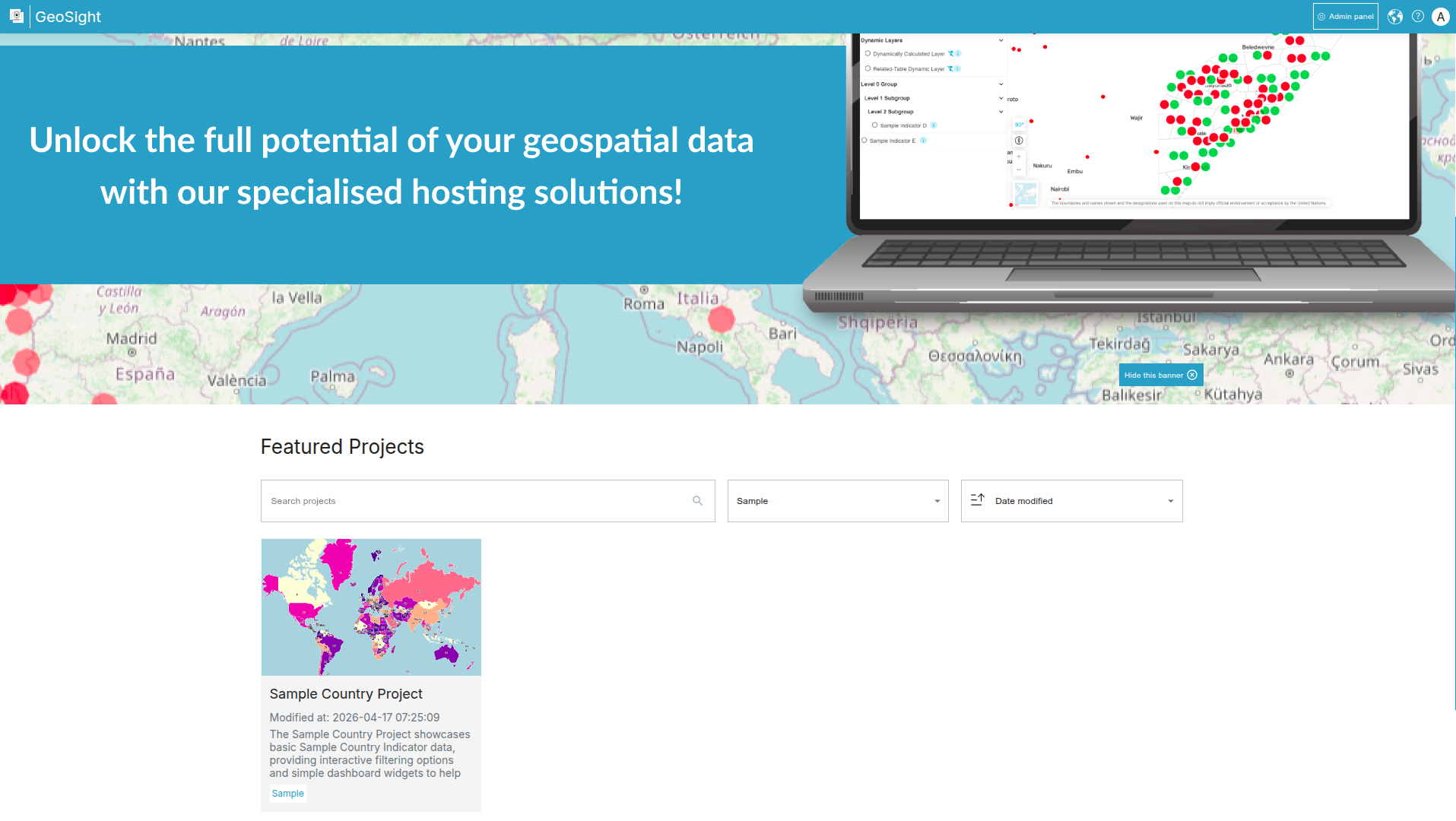
Project Gallery
The Project Gallery displays all dashboards available to you in one place. A project is a collection of indicators, context layers, widgets, and filters, allowing you to analyse and understand conditions within a specific area.
Each project is displayed as a Project Card with the following elements:
| Element | Description |
|---|---|
| Thumbnail | A visual preview representing the theme or content of the project. |
| Title | The name of the project. |
| Description | A short project summary. If too long, it can be scrolled within the card. |
Administrator Panel
The Administrator Panel is where you create and manage content within GeoSight. It allows you to manage data, build dashboards, configure layers, and control user access.
Users have full control over the data, projects, and layers they own. Editable items are highlighted in blue text, while non-editable items appear in black.
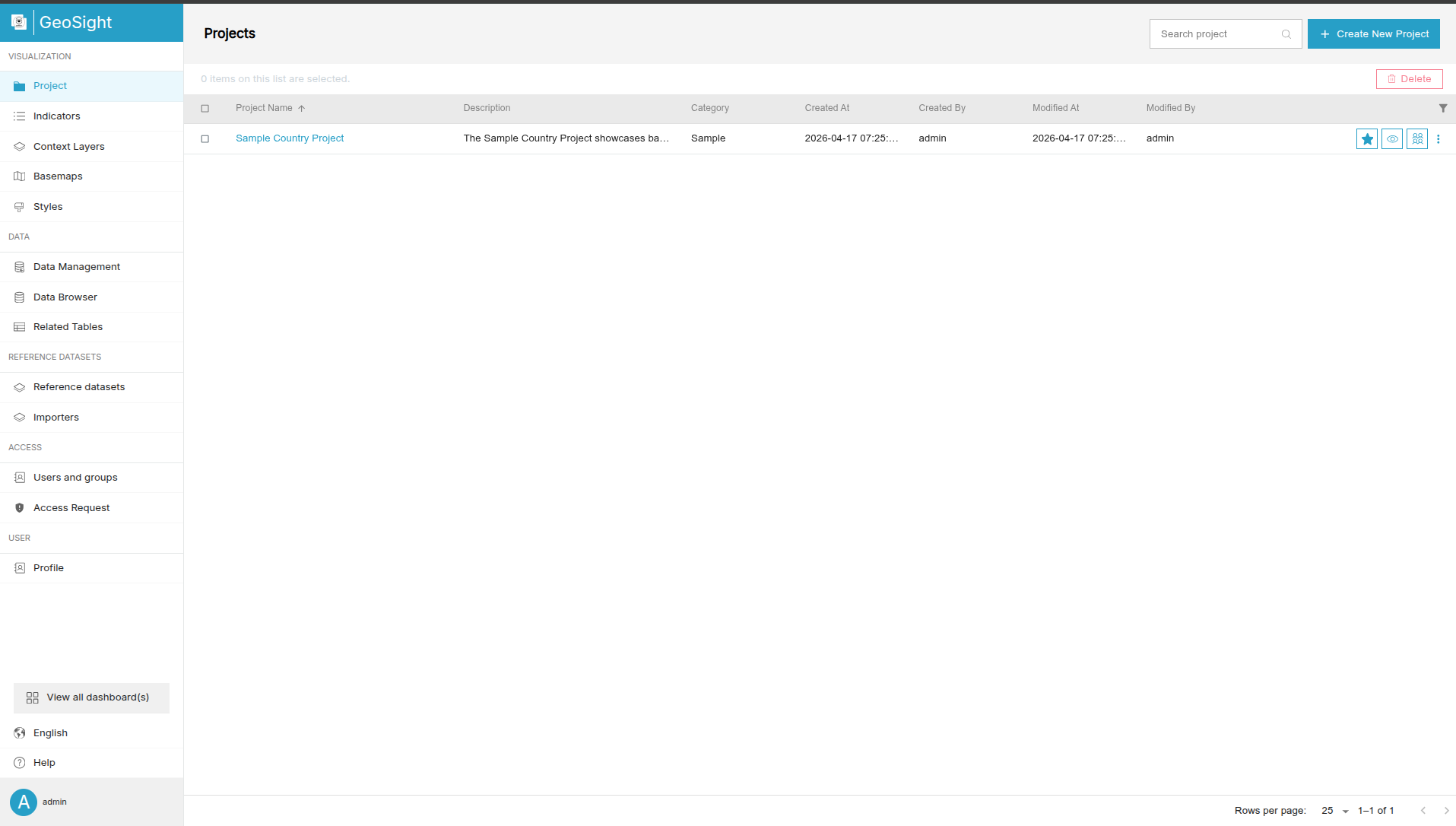
Visualization
Manage how data is presented and analysed within dashboards.
| Item | Description |
|---|---|
| Projects | Create and manage dashboards, including indicator layers, widgets, and filters. |
| Indicators | Create, edit, and manage indicator datasets. |
| Context Layers | Add and manage supporting geospatial layers. |
| Basemaps | Configure background map layers. |
| Styles | Create and manage custom visual styles. |
Data
Manage and organise your datasets.
| Item | Description |
|---|---|
| Data Management | View upload history, monitor status, and initiate new data imports. |
| Data Browser | Explore datasets and adjust data values. |
| Related Tables | Upload and manage large or disaggregated datasets. |
Reference Datasets
Manage administrative boundary layers used in analysis.
| Item | Description |
|---|---|
| Reference Datasets | Upload and manage boundary datasets (e.g. countries, provinces, districts). |
| Importers | Import and configure reference datasets for use in GeoSight. |
Access
Control users and permissions across the platform.
| Item | Description |
|---|---|
| Users and Groups | Add, edit, and manage users and user groups. |
| Access Requests | Review and manage requests for additional permissions or administrative access. |
Next up: Learn how to manage users and configure permissions to effectively control access throughout your GeoSight.