Quickstart: 5-Minute Tutorial
Ready to get started with QGIS Cloud Desktop? This guide walks you through launching your cloud desktop, opening QGIS, accessing your files, and connecting to PostgreSQL/PostGIS if a database has been assigned to you.
If you have not signed in before, first follow First Log In & Setting Your Password.
Before You Begin
Make sure that:
- Your Organisation Owner has granted you QGIS Cloud Desktop access.
- You have registered your passkey and can sign in to the Portal.
- You know which desktop image to use for your workflow.
- If you need a PostgreSQL/PostGIS connection, your Organisation Owner has assigned a database to you.
Step 1: Sign In and Launch
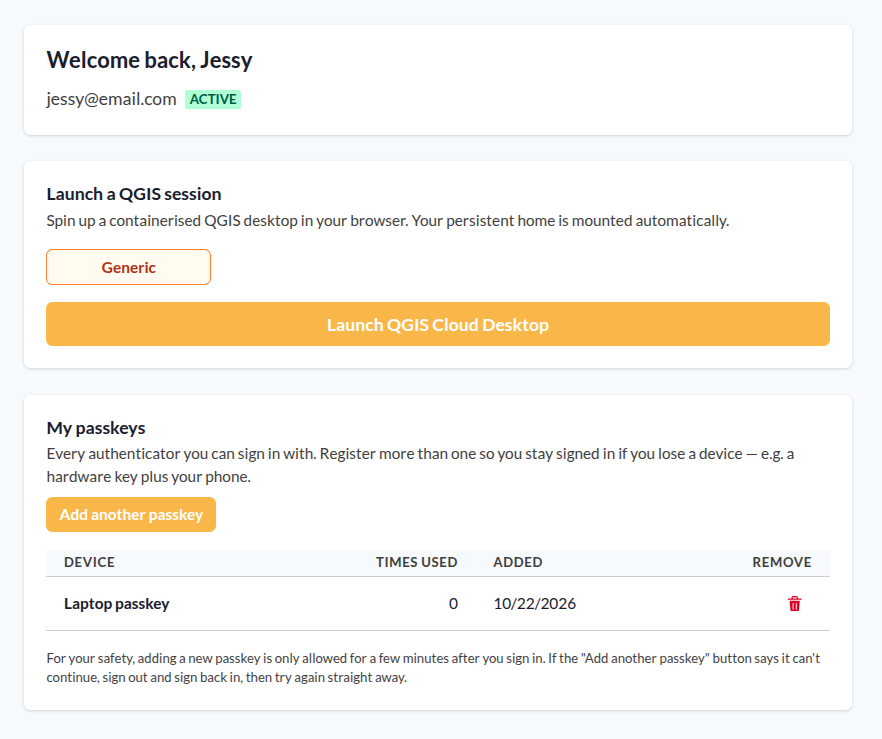
Sign in to the portal to start your QGIS Cloud Desktop session.
- Open the QGIS Cloud Desktop Portal.
- Sign in using your email address, organisation identifier, and registered passkey.
- Under Launch a QGIS session, select an available desktop image, such as Generic.
- Click Launch QGIS Cloud Desktop.
Step 2: Open QGIS Cloud Desktop
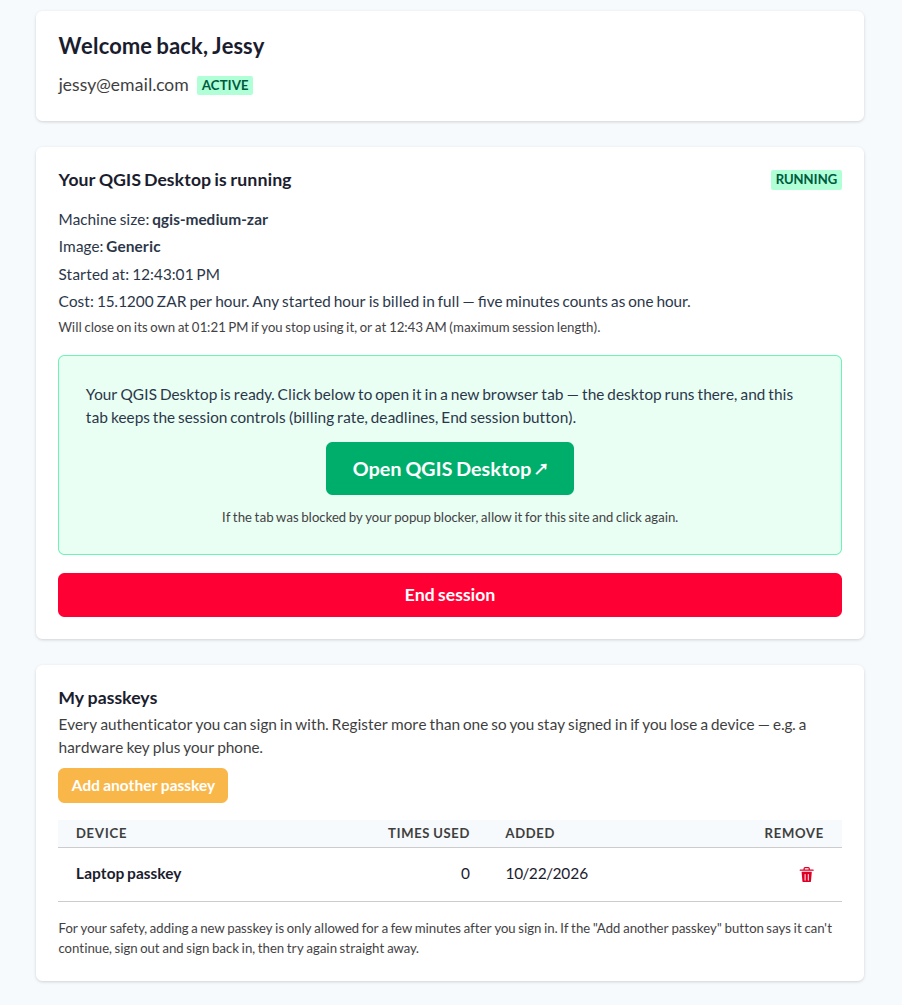
The platform will provision your desktop session. This usually takes approximately 5-10 minutes.
- Wait until the session status changes to
RUNNING. - Click Open QGIS Desktop ↗ in the Portal.
Step 3: Start Working in QGIS
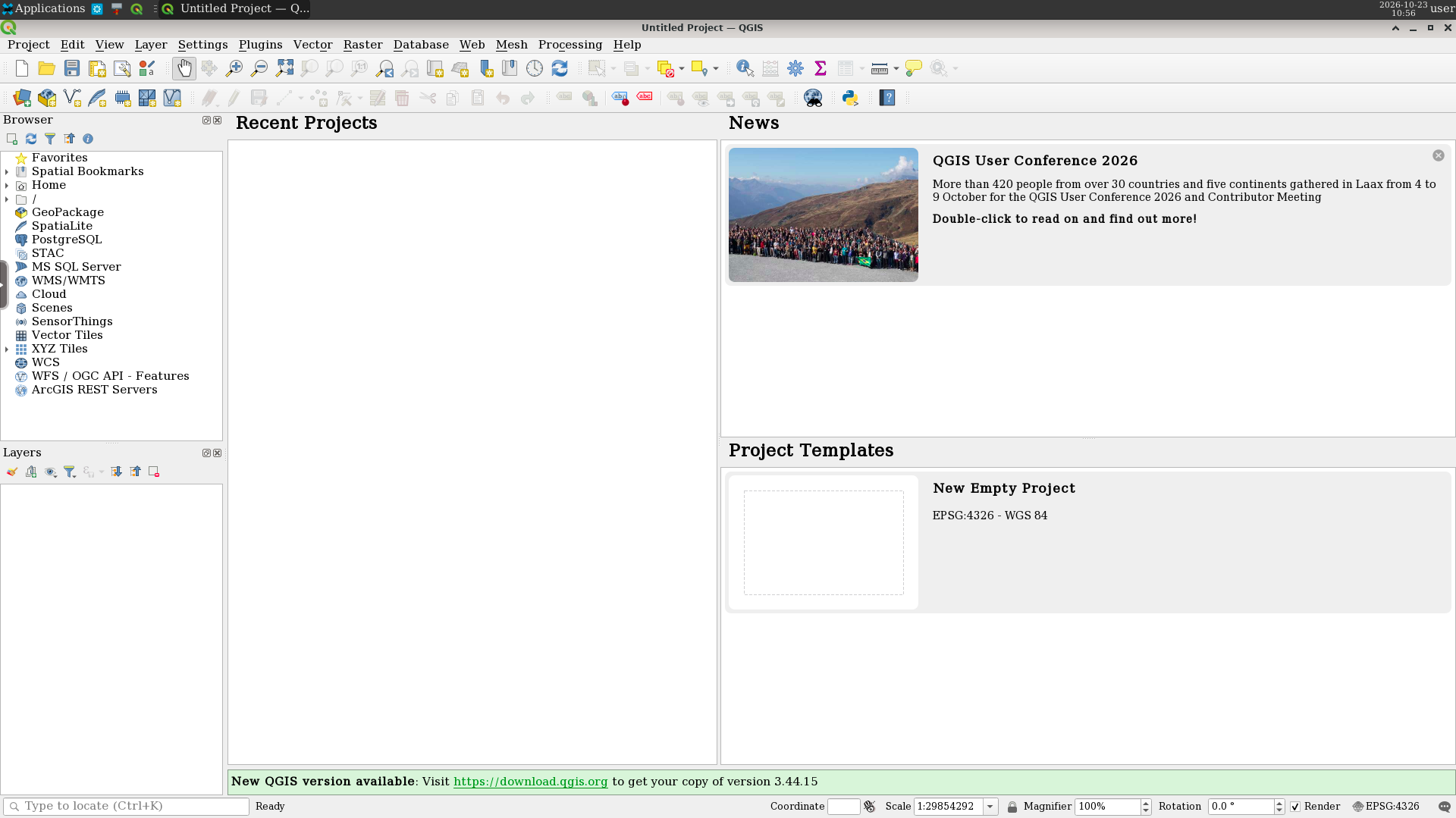
Open QGIS from the desktop environment.
- From the top nav-bar, select the QGIS icon.
- Go to the top menu and select Project > New.
You can use QGIS Cloud Desktop to:
- Create and edit QGIS projects.
- Open spatial datasets and add layers to a map.
- Run geoprocessing tools and spatial analysis.
- Work with files and scripts stored in your home folder.
- Connect to PostgreSQL/PostGIS databases when access has been granted.
Your Persistent Home Folder
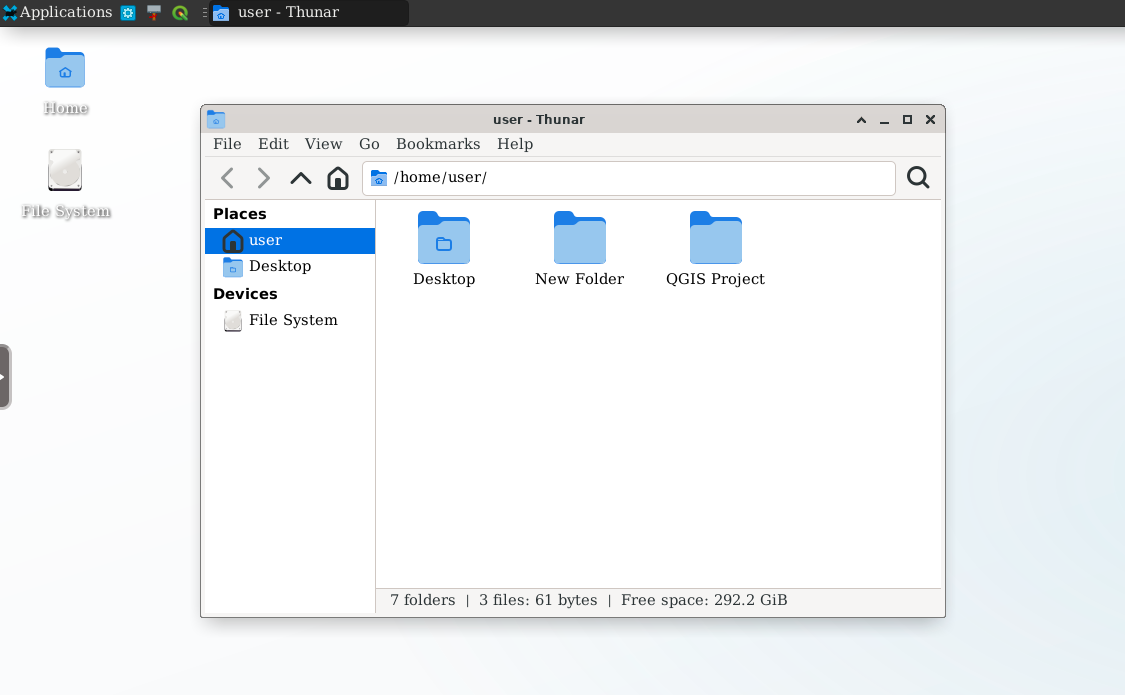
Your home folder is retained between desktop sessions. The desktop session itself is temporary, so save your work in your persistent home folder rather than relying on temporary locations.
Use it to store your working files, including:
- QGIS projects (
.qgzand.qgs) - Spatial datasets and exported results
- Scripts and configuration files
- Documents and other project resources
Step 4: Connect to PostgreSQL
If your Organisation Owner has assigned a PostgreSQL/PostGIS connection, the required service configuration should already be available in your home folder.
The configuration is stored in a file named pg_service.conf. It contains the connection settings needed by PostgreSQL clients, including QGIS.
To connect from QGIS:
- Open the Data Source Manager.
- Select PostgreSQL.
- Create a New Connection.
- Enter a connection name that matches the database's registered service name.
- Test the connection and save it.
You should not need to manually enter the database host, port, username, password, or TLS settings when using the supplied service configuration.
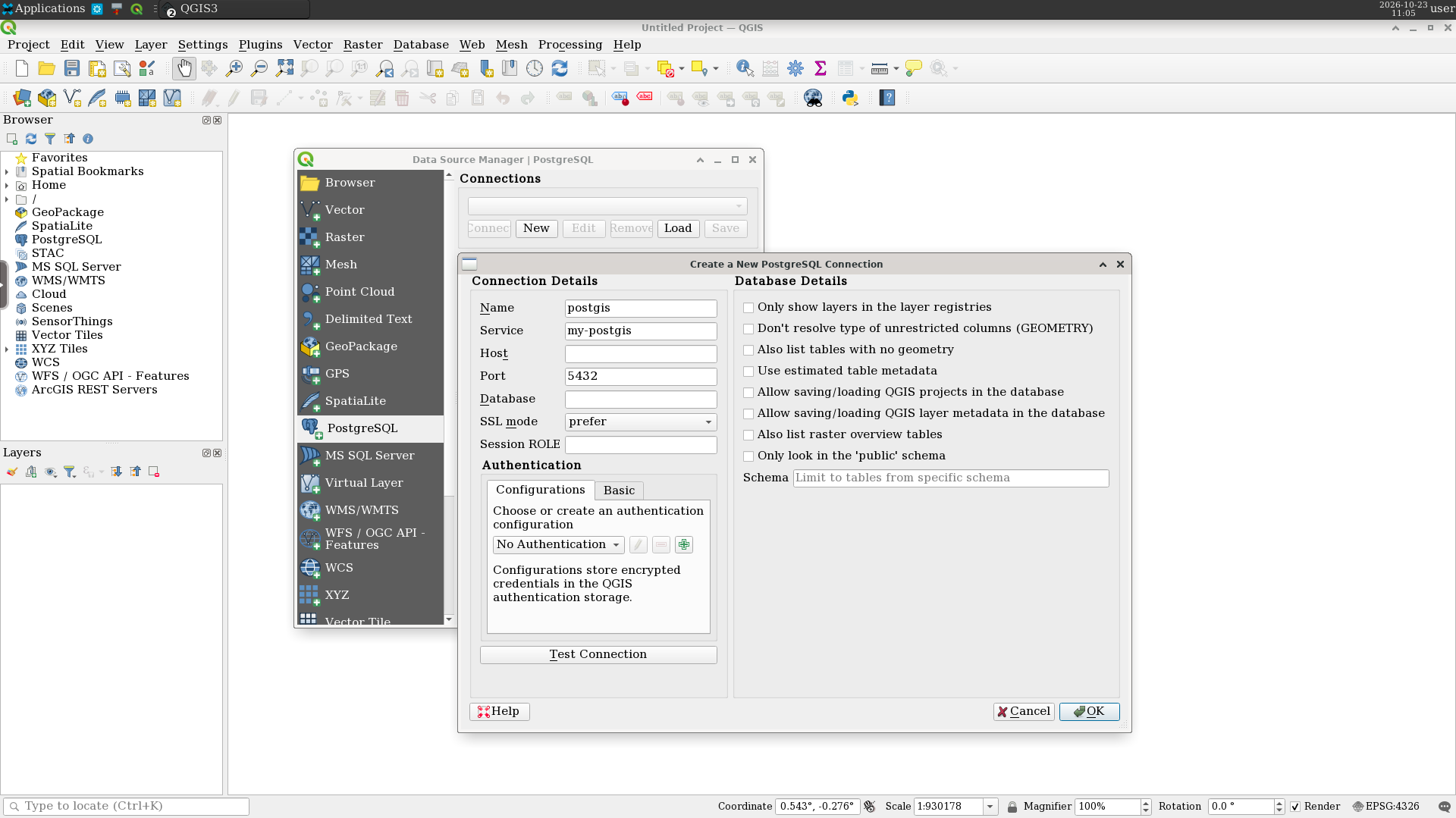
For more information about registering a database and granting access, see Assign a Database.
Step 5: End Your Session
When you have finished working:
- Save your QGIS project and any other files in your persistent home folder.
- Return to the QGIS Cloud Desktop Portal.
- Click End session.
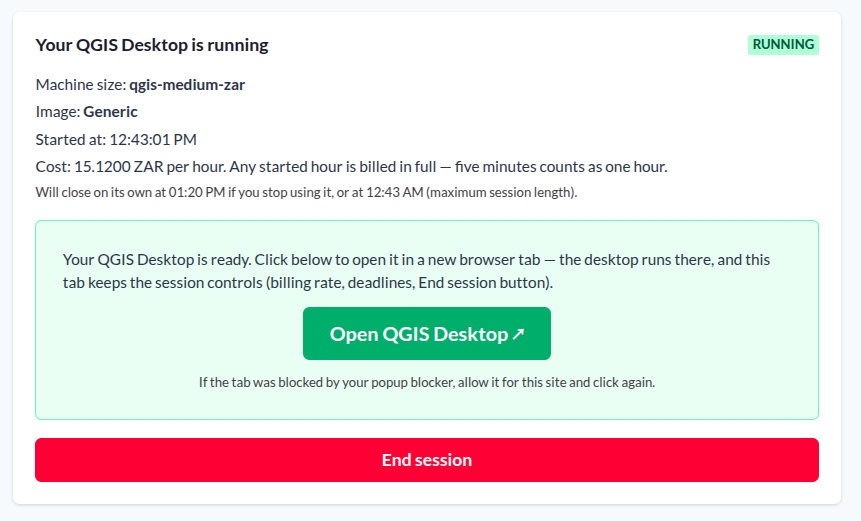
Ending your session stops the cloud desktop host and prevents further host charges. Your persistent home folder remains available, but storage charges continue while the storage volume is allocated.
Remember that desktop usage is billed according to the selected machine tier, with a minimum charge of one hour per session. Check the current pricing information before starting longer sessions.
Next up: You have now completed the basic QGIS Cloud Desktop workflow. Next, we'll show you how to assign a database.