First Log In & Setting Your Password
Once your organisation has created your account and granted you access, you can register a passkey, sign in to the QGIS Cloud Desktop Portal, and launch your first desktop session.
QGIS Cloud Desktop uses passkeys for portal authentication. You do not need to create a separate portal password.
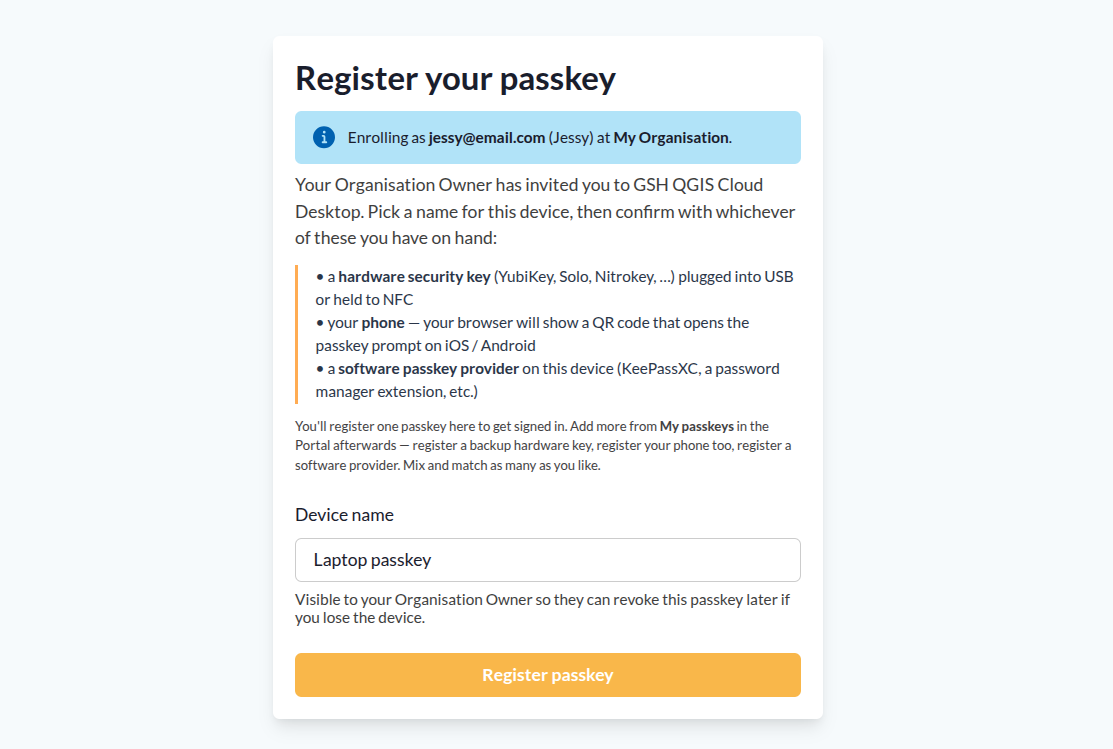
Step 1: Register Your Passkey
Your Organisation Owner will send you an enrolment link.
- Open the enrolment link in your web browser.
- Choose a Device name for the device/authenticator you are registering.
- Click Register passkey.
- Follow your browser's instructions to confirm the registration.
Depending on your device and available authentication methods, you may be able to use a hardware security key, your phone, or a software passkey provider such as a password manager.
Your browser will wait for the selected authenticator to respond to the passkey request. Once the authenticator confirms the request, your passkey will be registered.
Step 2: Sign In to the Portal
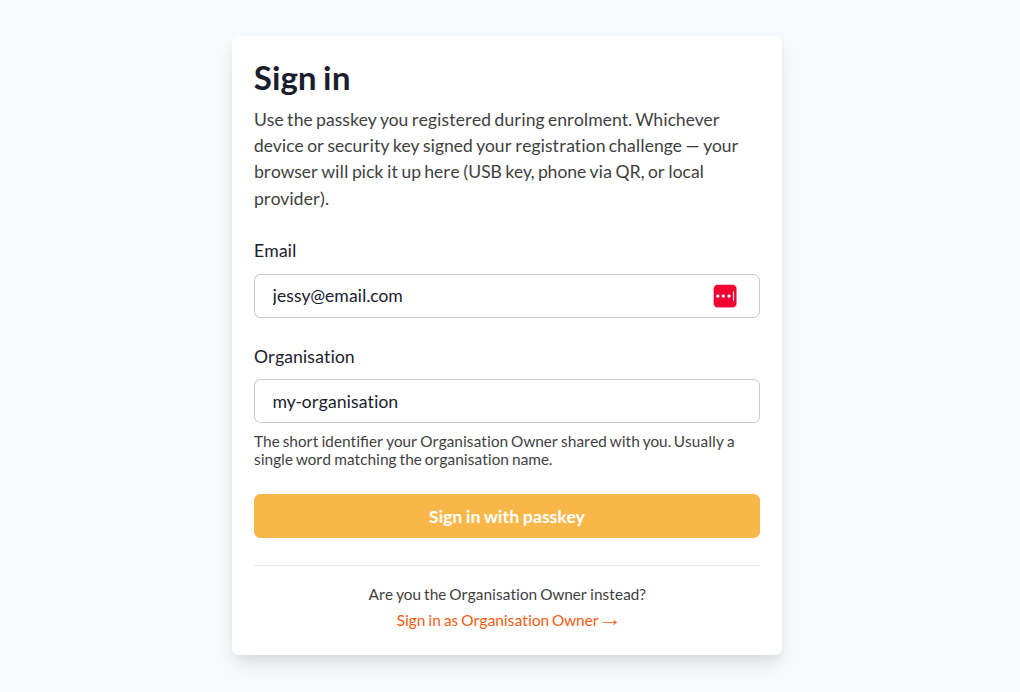
After registering your passkey, open the QGIS Cloud Desktop sign-in page.
- Enter your registered email address.
- Enter your organisation's short identifier.
- Click Sign in with passkey.
- Confirm the authentication request using the same authenticator you registered earlier.
After successful authentication, you will be taken to the QGIS Cloud Desktop Portal.
Step 3: Launch a QGIS Cloud Desktop Session
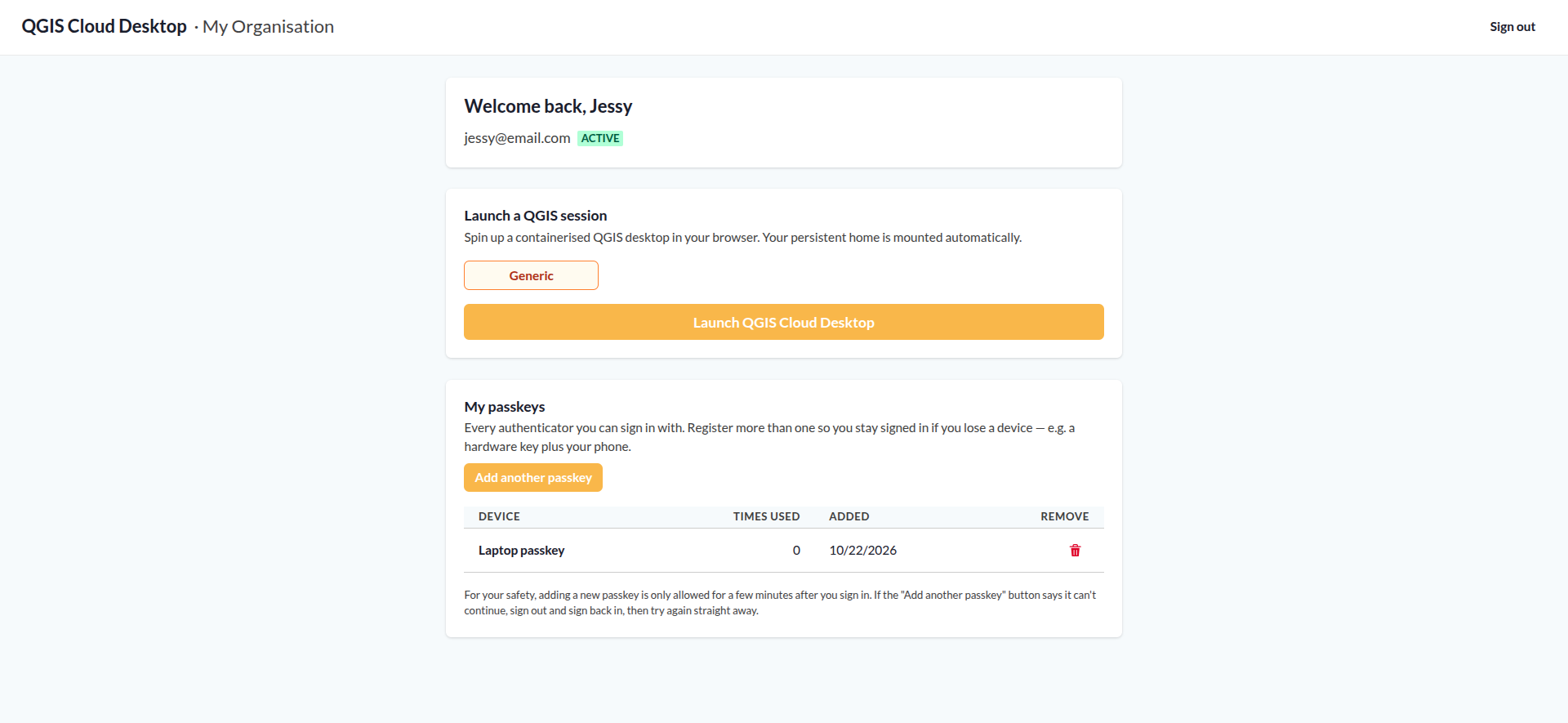
On the Portal, locate the Launch a QGIS session section.
- Select an available desktop image, such as Generic.
- Click Launch QGIS Cloud Desktop.
- Wait while the platform provisions your desktop session.
Provisioning usually takes approximately 5-10 minutes. You can cancel the launch from the Portal if necessary.
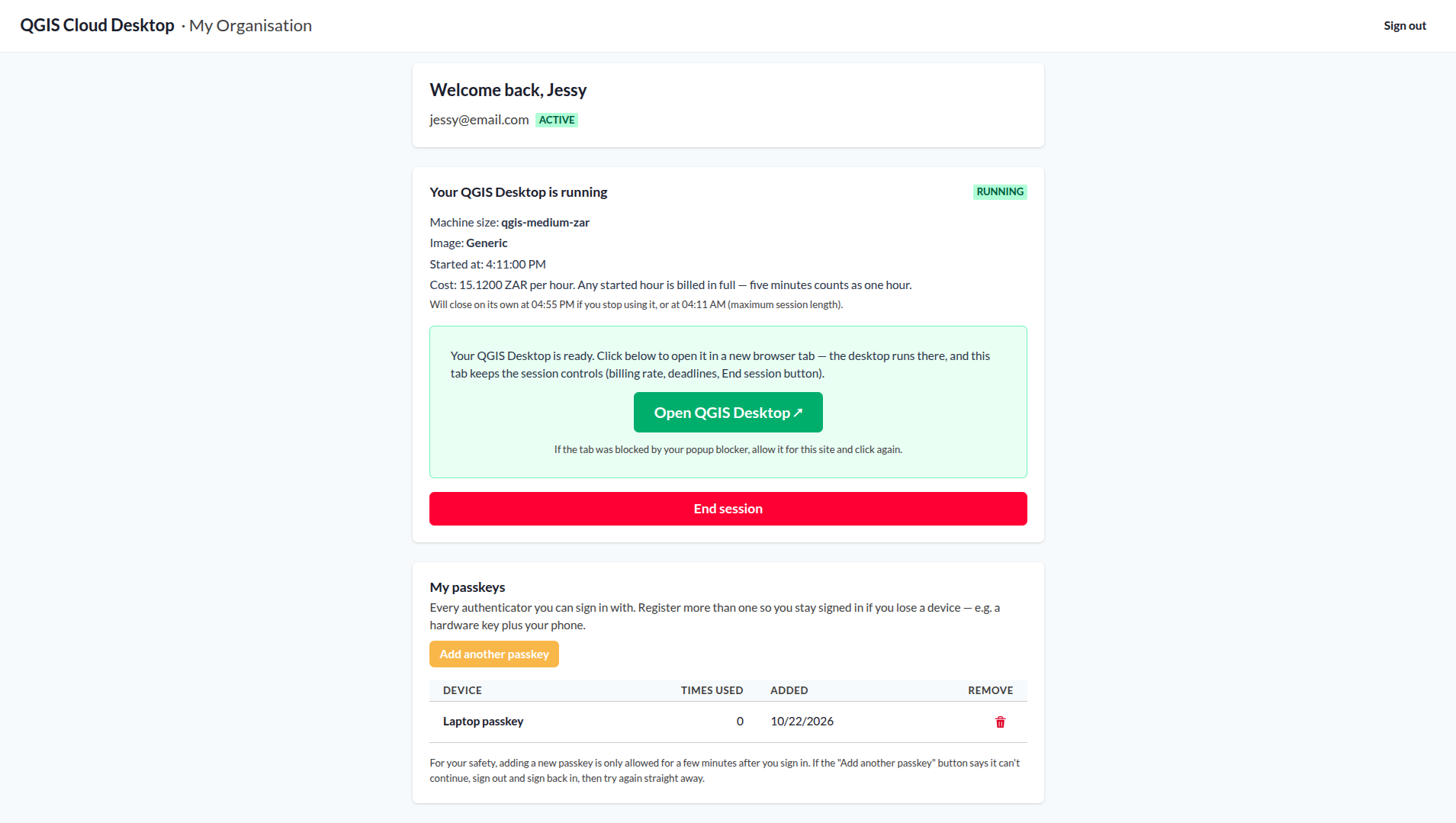
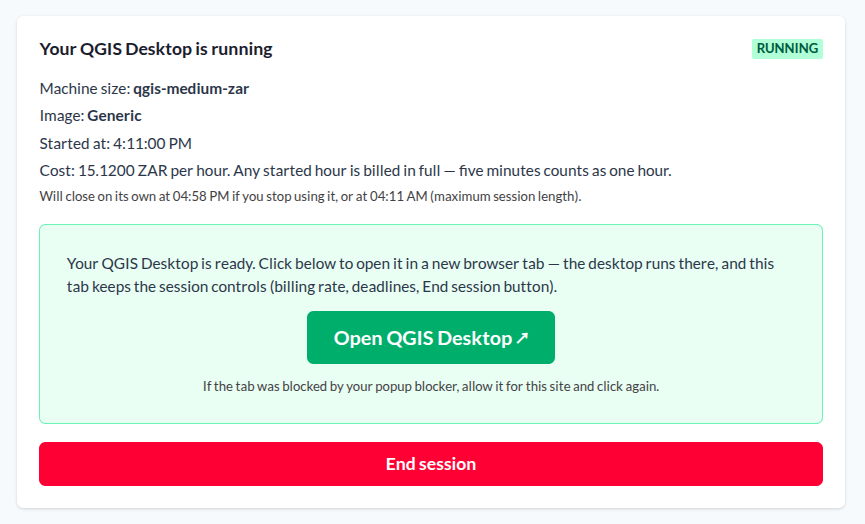
Once the session status changes to RUNNING, the Portal displays information about your session, including the machine size, desktop image, start time, billing rate, and automatic session closure deadlines.
Step 4: Open Your Desktop
When your session is running, click Open QGIS Desktop ↗.
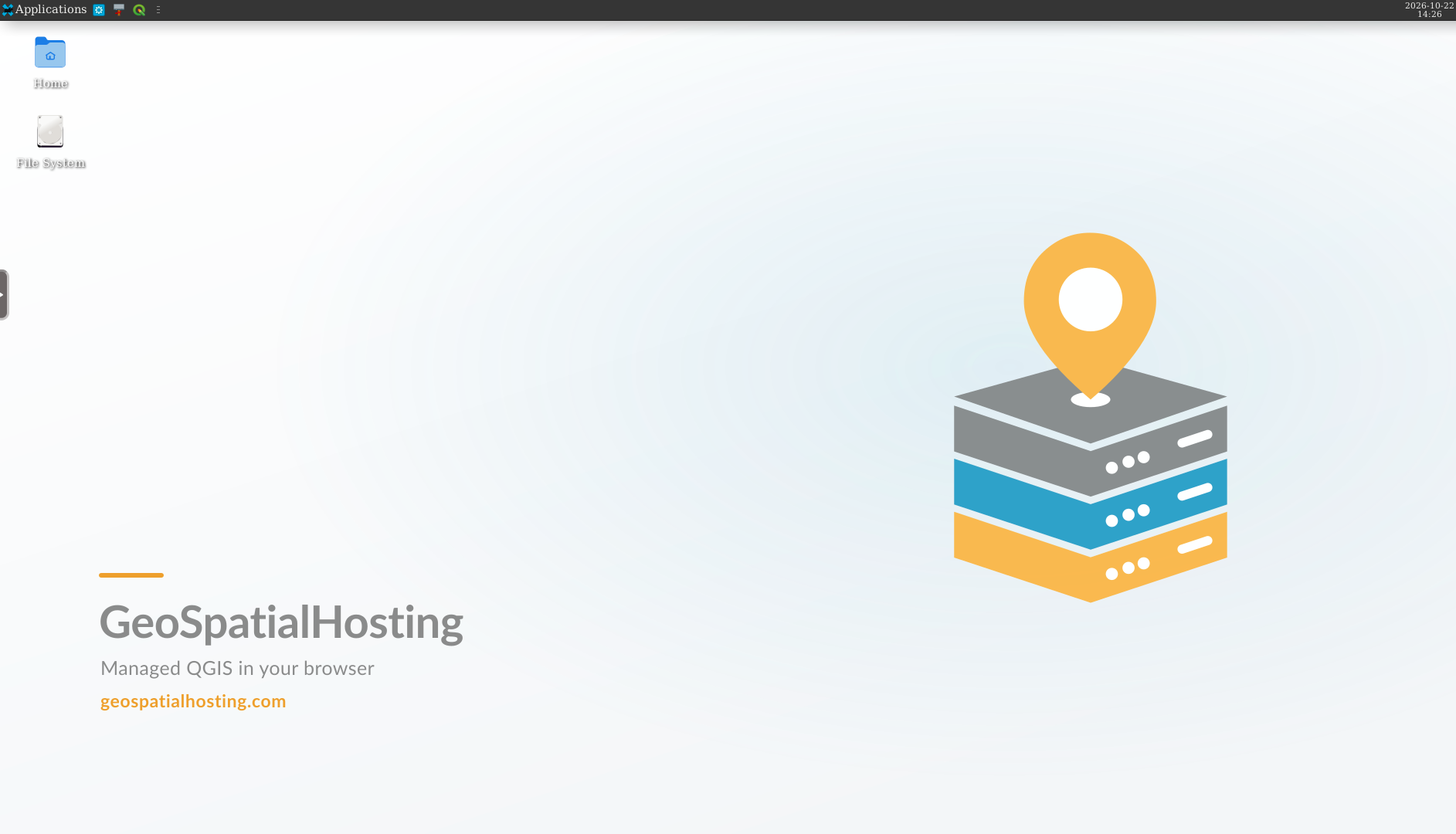
You will see your Linux desktop running in the browser, with QGIS and the applications included in your selected desktop image.
Your home folder persists between sessions, allowing you to keep your QGIS projects, datasets, scripts, and other files.
Step 5: Finish Your Session
When you have finished working:
- Return to the QGIS Cloud Desktop Portal.
- Click End session to stop your desktop session.
Ending the session stops further host charges. Persistent storage charges continue while your home folder remains allocated.
Next up: Follow the Quickstart to get familiar with the complete workflow.