Creating Your Instance
This page explains how an Organisation Owner can create an End User and grant them access to QGIS Cloud Desktop.
Once access has been granted, the End User can register their passkey, sign in to the QGIS Cloud Desktop Portal, and launch their own cloud desktop session.
Step 1: Create Your Organisation
Your organisation will serve as the central space for managing End Users, desktop access, and resource usage.
- Sign in to the GeoSpatialHosting Dashboard.
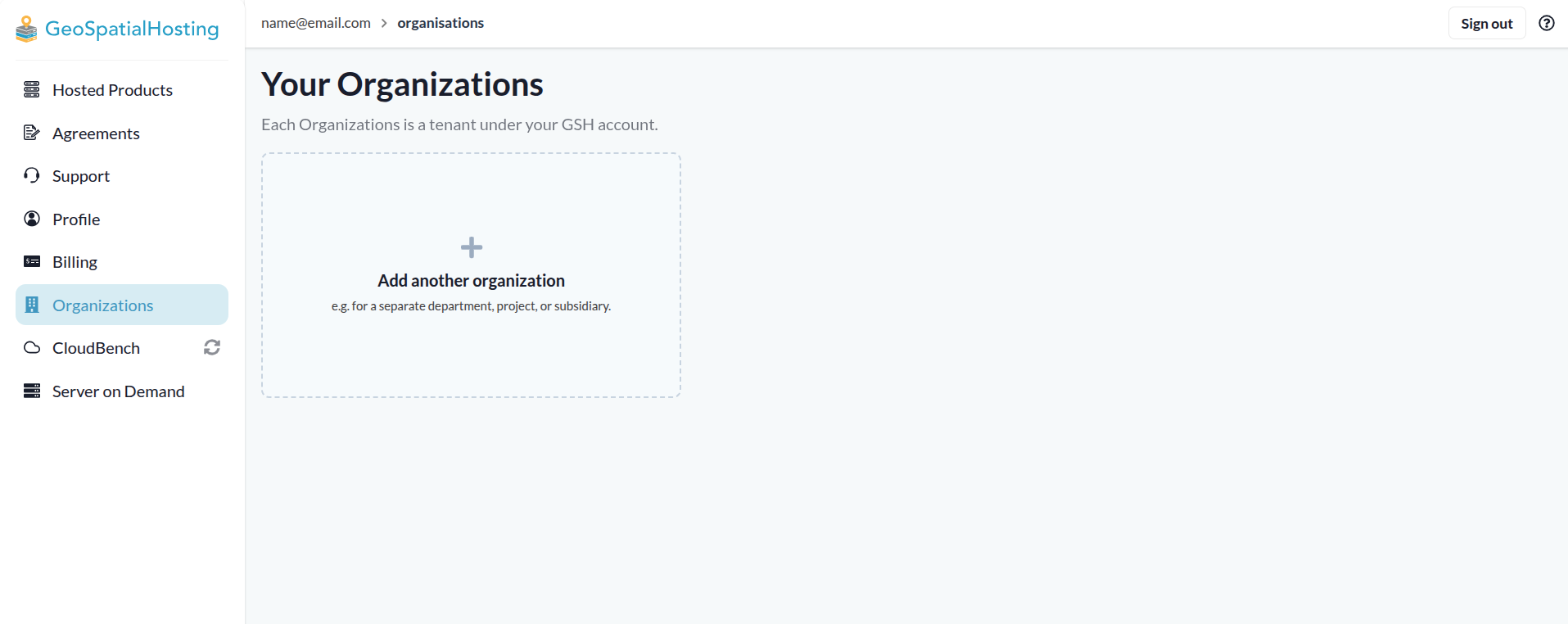
- Open the Organizations tab.
- Select Add another organization and enter your details.
- Click Create when you're done.
Step 2: Open QGIS Cloud Desktop
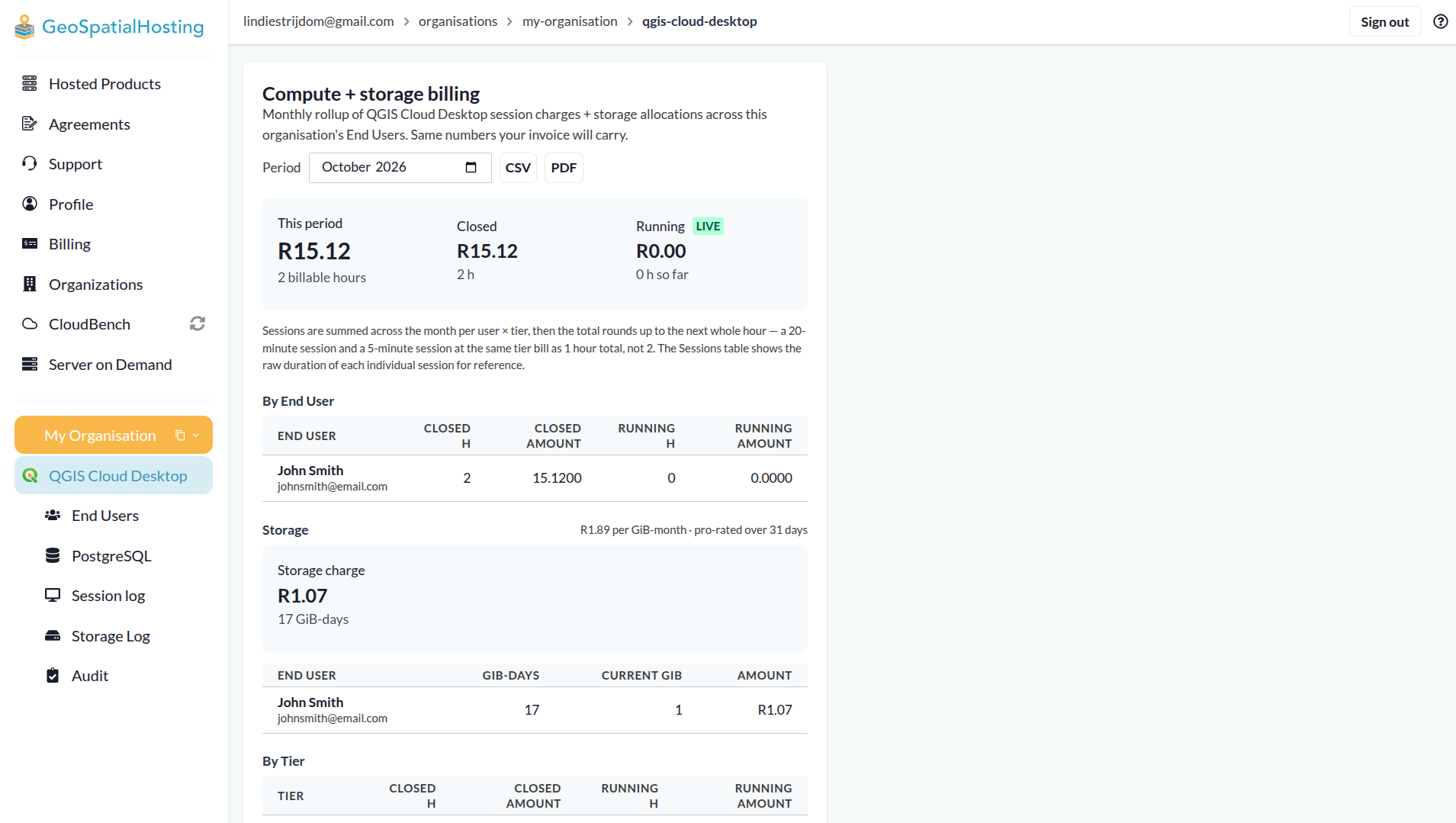
Select the new QGIS Cloud Desktop tab.
On this page, you can manage QGIS Desktop session timeouts and view a breakdown of compute and storage costs for your organisation.
You can review monthly billing totals by End User and compute tier, track running and closed session charges, monitor storage usage and costs, and archive or restore the organisation.
Step 3: Create an End User
Each End User gets their own account to access QGIS Cloud Desktop.
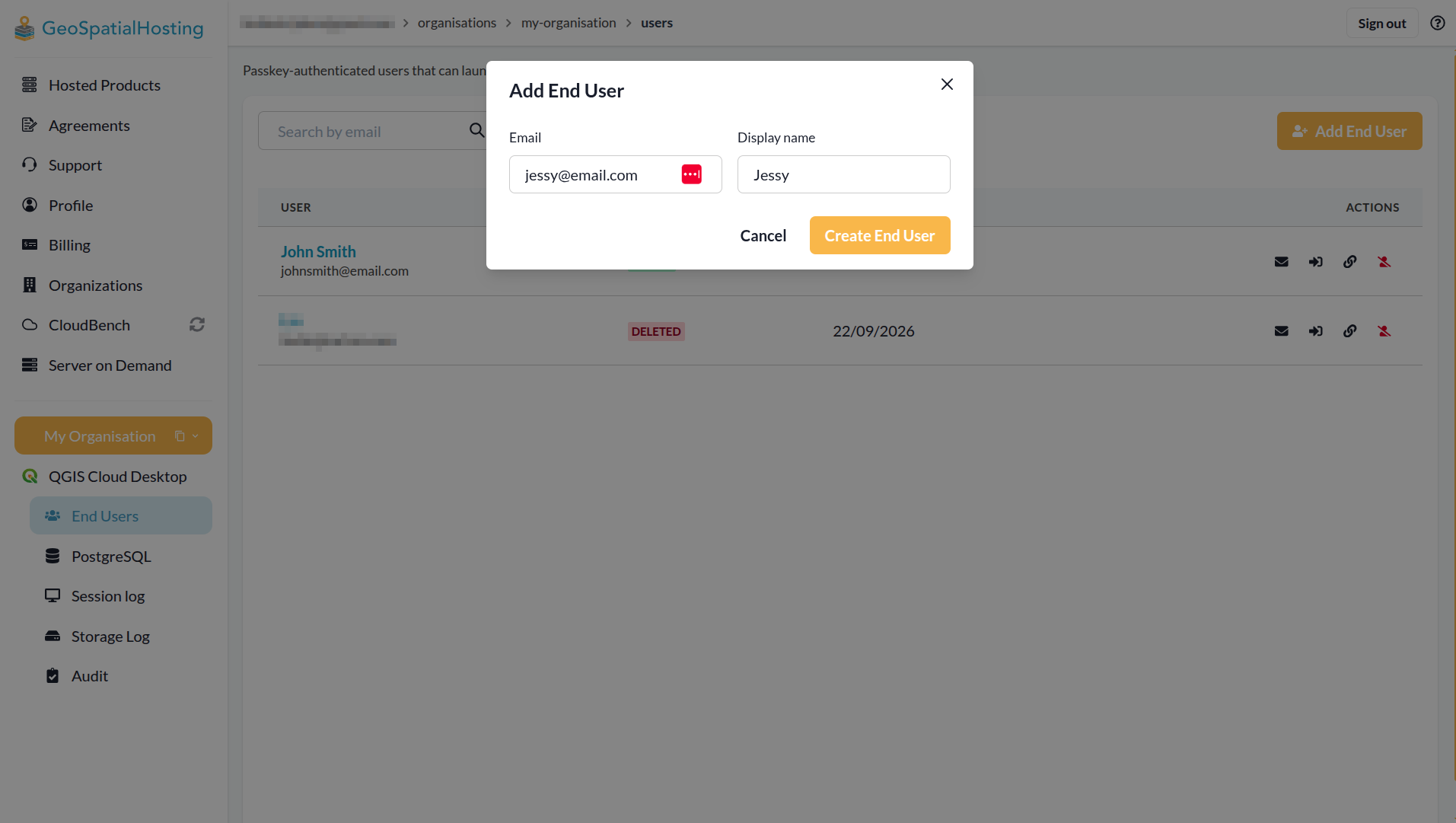
- Select the End Users tab.
- Click Add End User.
- Enter the user's email address and display name.
- Click Create End User.
The new End User will appear in the list with the status INVITED.
Step 4: Send the enrolment link
The End User must register a passkey before they can sign in.
- From the users profile, click the Email Icon to email the enrolment link to the user.
- Alternatively, click the Link Icon to copy the enrolment link and share it via your preferred communication method.
The End User will use this link to register their passkey. For the complete process, see First Log In & Setting Your Password.

Step 5: Grant Access
After creating the End User, configure their desktop resources.
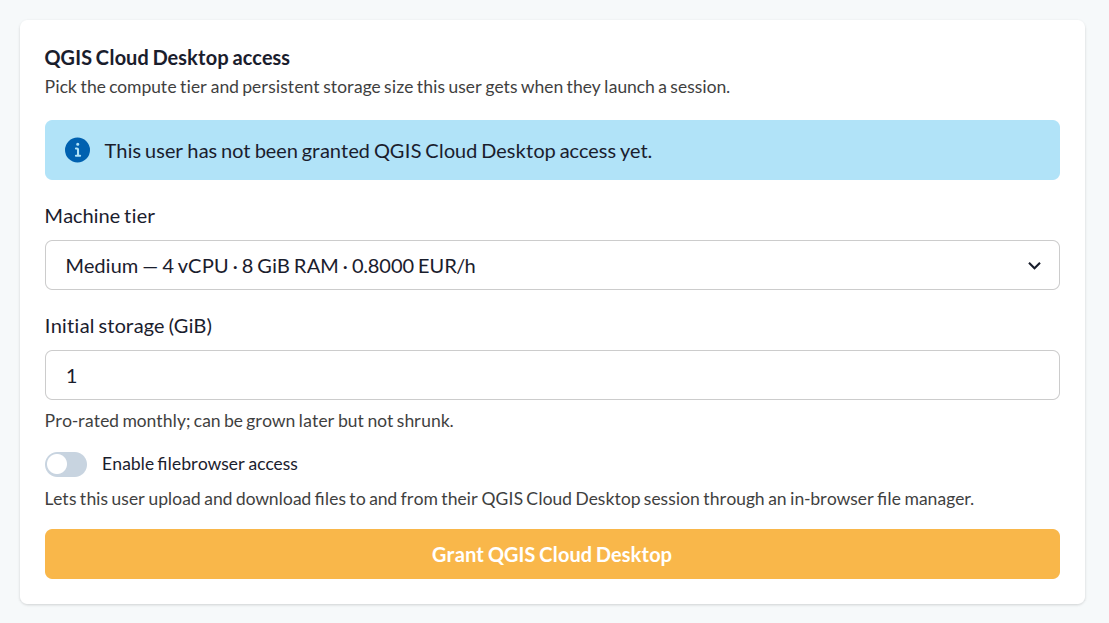
- Locate the QGIS Cloud Desktop access section.
- Select the appropriate Machine tier for the user's computing requirements.
- Specify the Initial storage (GiB) for their persistent home folder.
- Click Grant QGIS Cloud Desktop.
Choosing machine size and storage
Consider the user's expected workload when selecting resources:
- Machine tier: Determines the computing resources available to the desktop session.
- Initial storage (GiB): Determines the initial capacity of the user's persistent home folder.
The persistent home folder stores files and settings between sessions. Storage can be increased later but cannot be reduced, so choose an initial allocation carefully.
Host and storage charges are calculated separately. Refer to the QGIS Cloud Desktop Overview for more information about billing.
Next up: We’ll walk you through registering your passkey as an End User and launching QGIS Cloud Desktop for the first time.